Work with an AI agent through the API
An AI agent is a normal user marked as an agent. It calls the API with a token, drafts posts and submits them. A person still approves, and the log shows which actions came from the agent.
Watch it in a short video
Before you start
- An agent user in your business, added to the workspace with the Editor role. Our team creates agent users, so email [email protected] to get one set up, then sign in as that agent.
- A way to call HTTPS APIs: curl, a script, or an agent tool such as Claude Code or n8n.
Steps
-
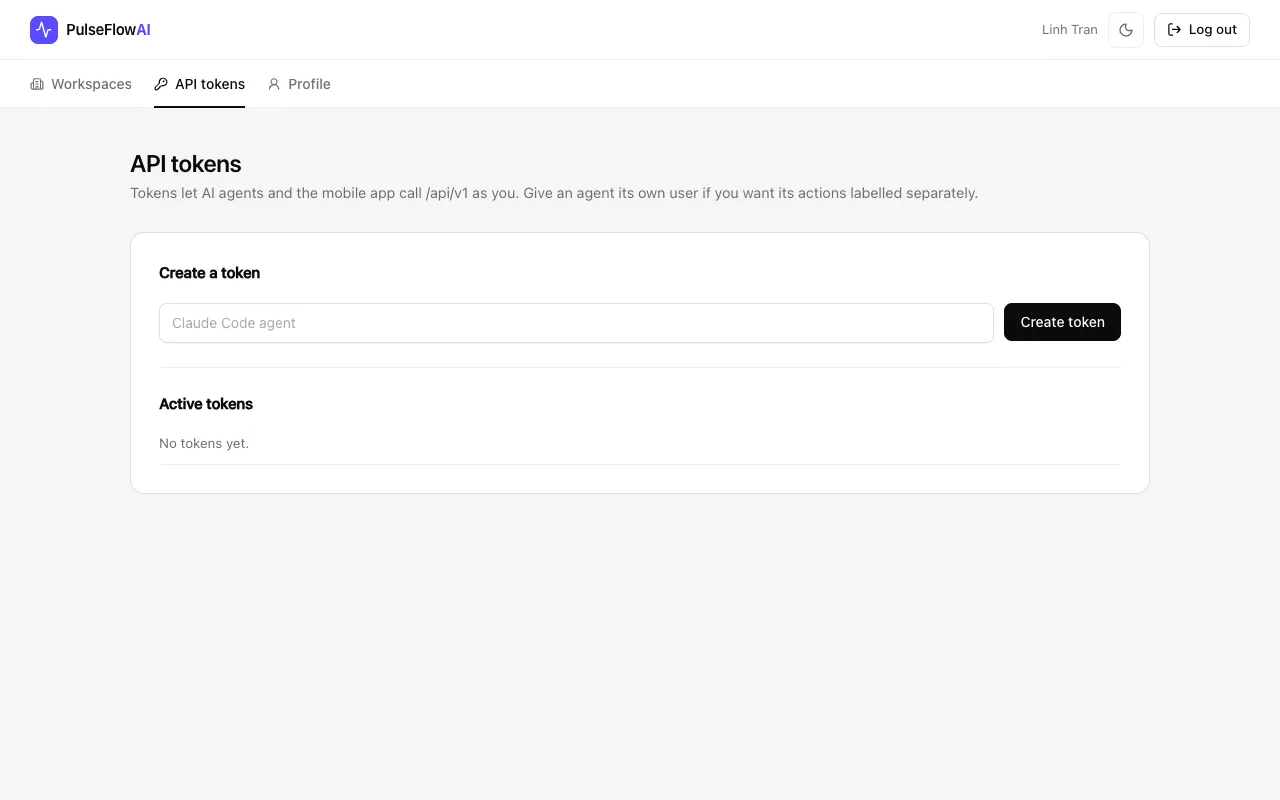
Step 1: Open API tokens
Open API tokens from the main menu. Tokens let an agent or the mobile app call the API as the user who owns the token, so sign in as the agent user first. A token made while you are signed in as yourself would post as you. Without the web app, POST /api/v1/auth/tokens with the agent's email and password returns a token.
-
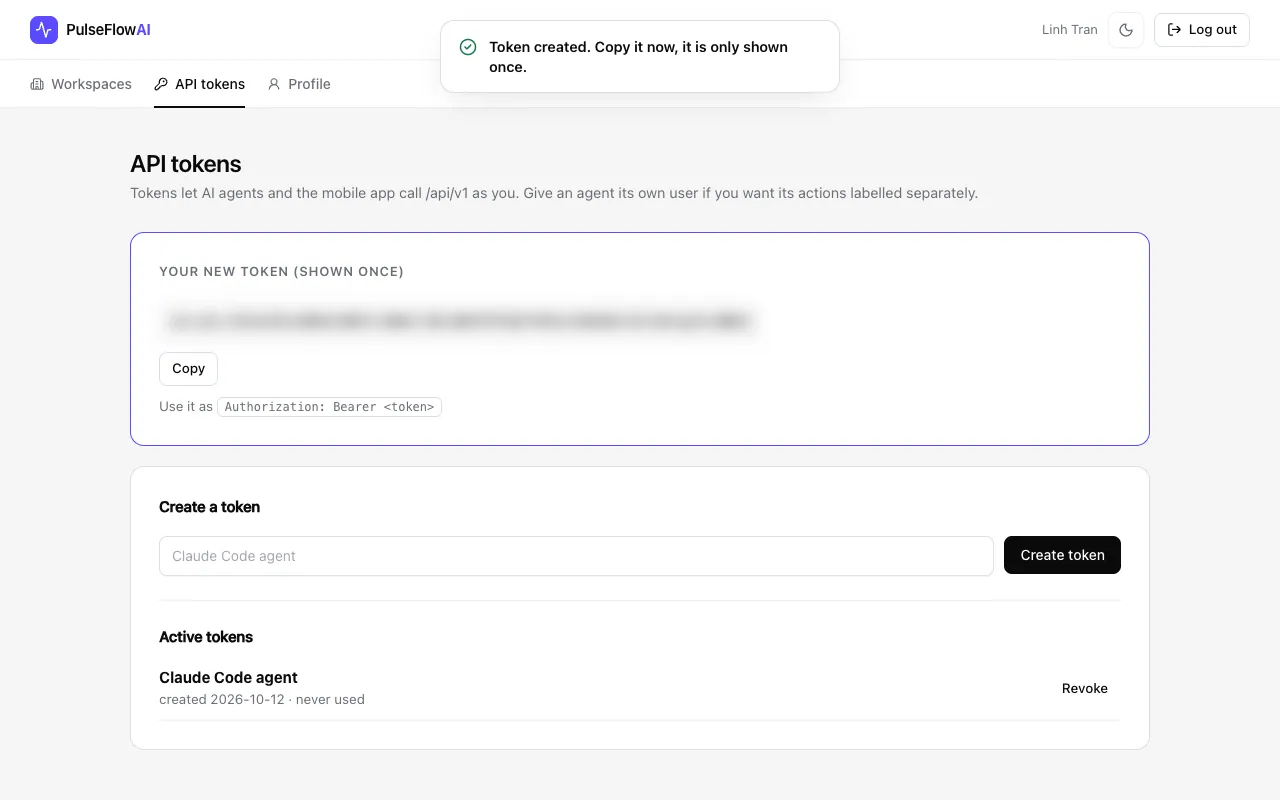
Step 2: Create a token and copy it
Enter a name such as "Claude Code agent" and click Create token. The token is shown once. Copy it into your agent tool, and treat it like a password. The picture blurs it.
-
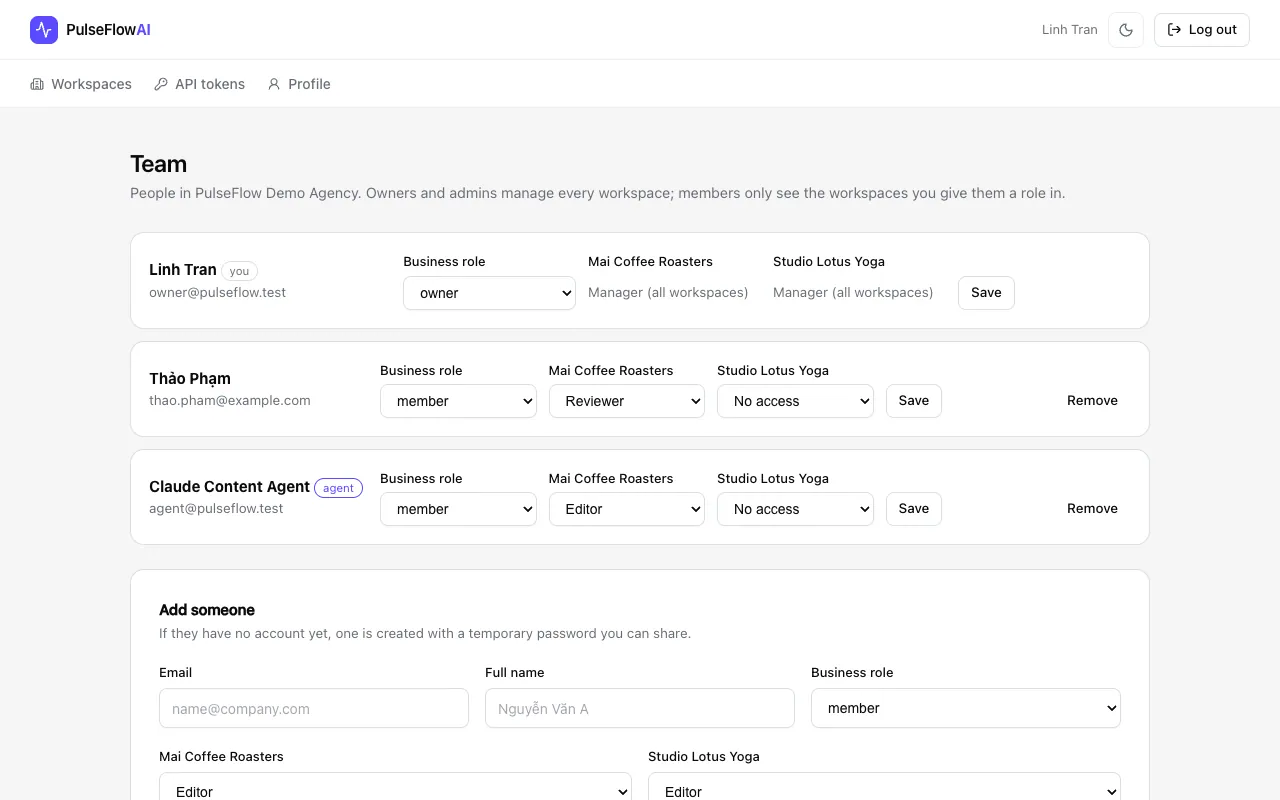
Step 3: Check the agent user and its role
Do this before creating the token. Our team creates the agent user. On the Team page it carries an agent label. Give the agent the Editor role in each workspace it needs: it can create and edit drafts and submit them, but cannot approve or publish.
-
Step 4: The agent submits a post
The agent calls the API with its token. With
submit: truethe post lands in In review, labelled as created by an agent. The example below shows the request.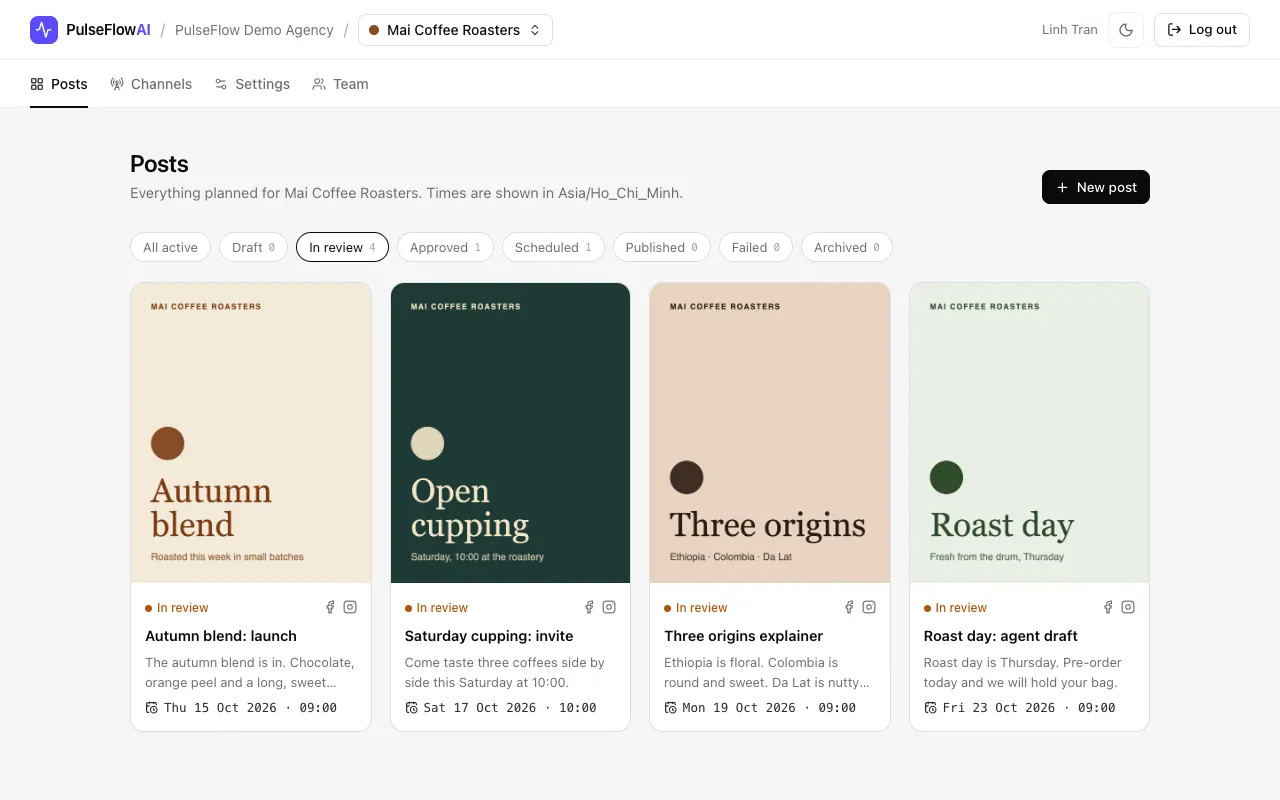
-
Step 5: A person approves
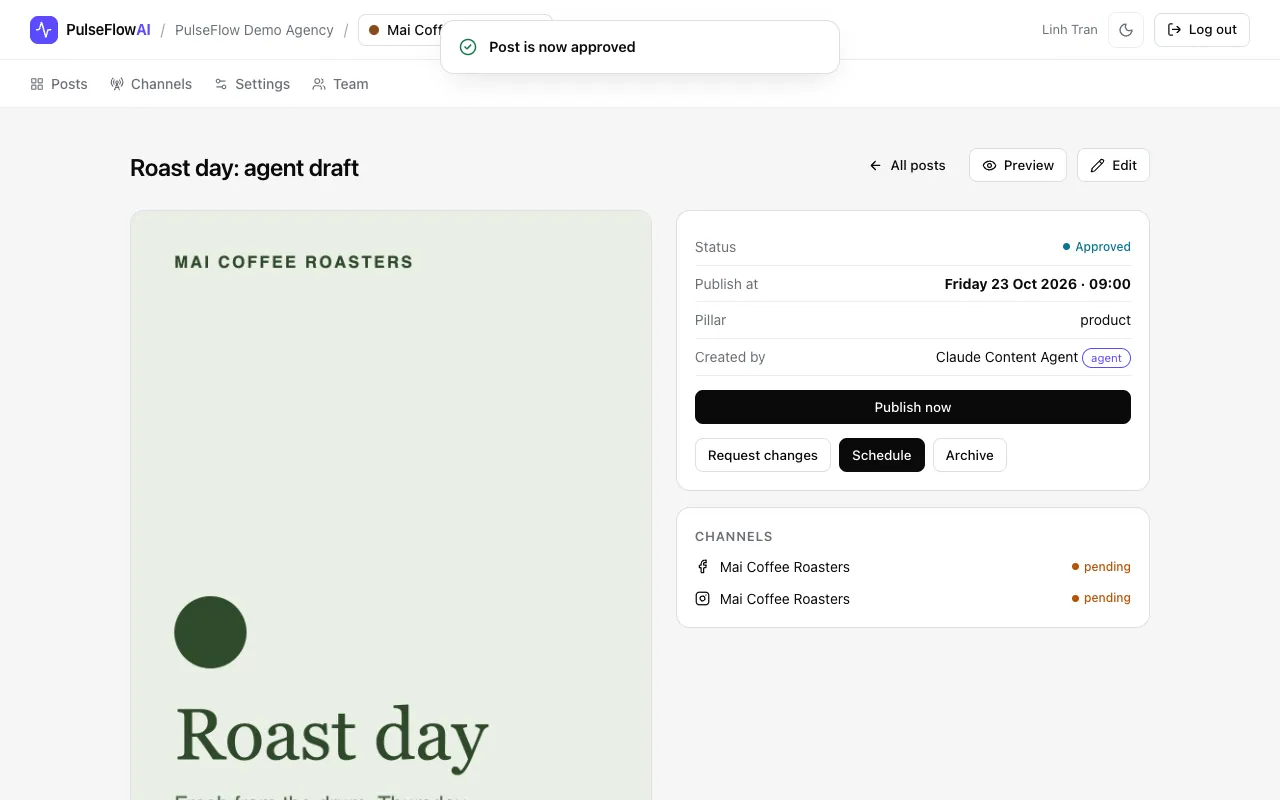
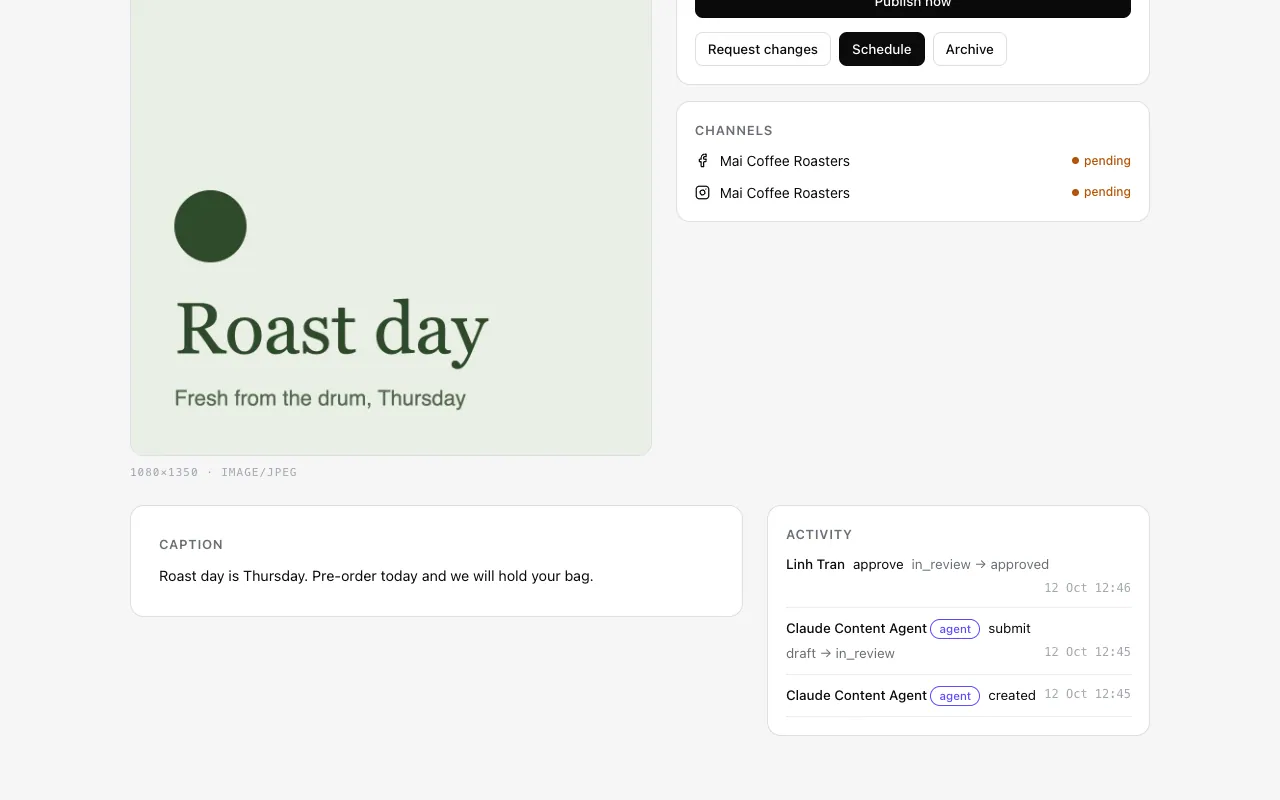
Open the post, check the caption and preview, and click Approve. A manager then schedules it. The Activity log shows the agent as the author and you as the approver.
-
Step 6: Check the activity log
Scroll to Activity. Every agent action carries the agent label, so you can always tell what the agent did and what a person did.
Example: an agent submits a post
curl -X POST https://app.pulseflowai.com/api/v1/workspaces/2/posts \
  -H "Authorization: Bearer $TOKEN" \
  -H "Content-Type: application/json" \
  -d '{
    "title": "Roast day: agent draft",
    "caption": "Roast day is Thursday. Pre-order today and we will hold your bag.",
    "channelIds": [4, 5],
    "scheduledAt": "2026-10-23T09:00",
    "submit": true
  }'
scheduledAt without an offset is read in the workspace timezone. submit: true moves the post to In review. 2 is the workspace id and 4, 5 are channel ids; GET /api/v1/workspaces/2/channels lists yours.
Tips
- Use one token per tool. If a tool is compromised, revoke only its token from the list.
- Keep agents at Editor so they can draft and submit but not approve or schedule.
- The API overview on the features page lists what agents can read and write.
Common questions
Can an agent publish without a person?
Not with the Editor role. Editors create, edit and submit. Approval needs a reviewer or manager, and scheduling needs a manager.
Where is the token after I close the page?
It is shown once and cannot be shown again. Create a new token and revoke the old one.