Sign in and find your workspaces
PulseFlowAI is built for agencies and companies. Our team creates your business and its first owner, and the owner adds everyone else.
Watch it in a short video
Before you start
- An email address and password from your account owner or from our team.
- A current version of Chrome, Safari, Edge or Firefox.
Steps
-
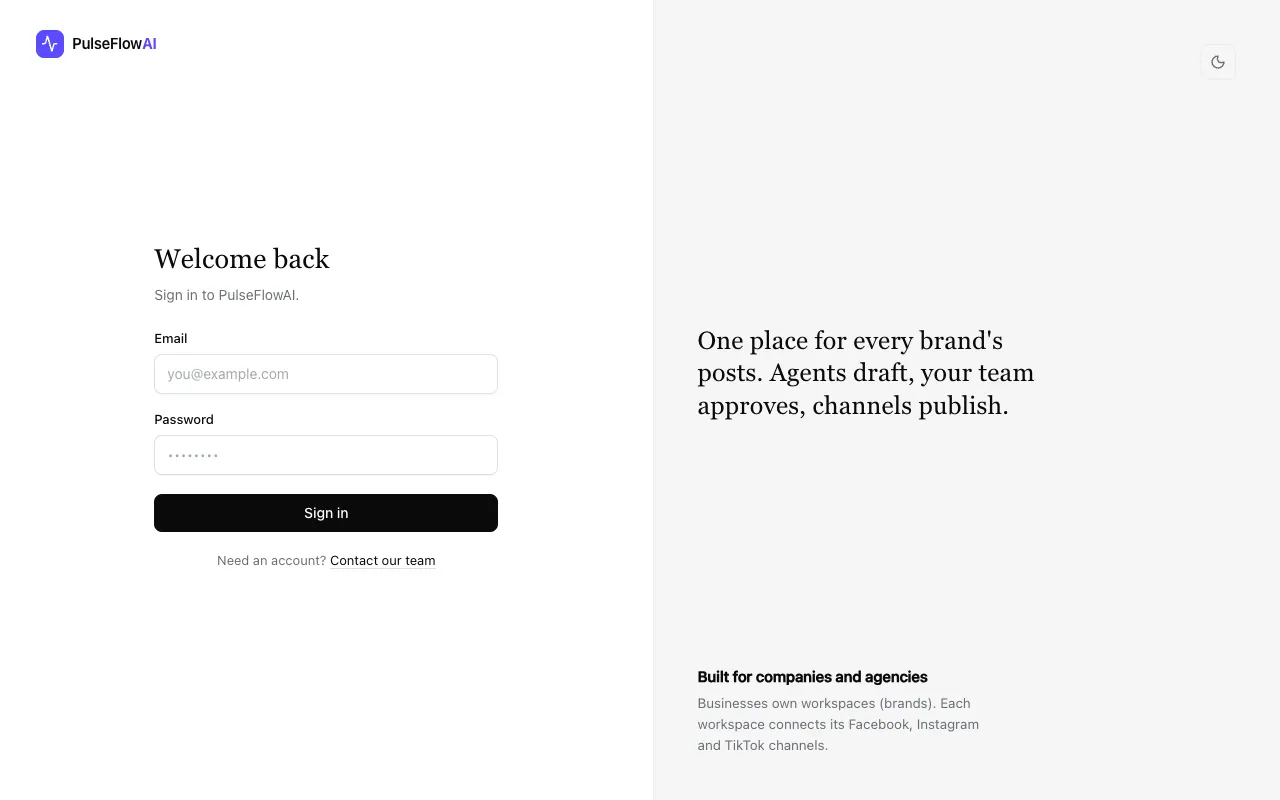
Step 1: Open the sign-in page
Go to app.pulseflowai.com/login. If nobody has added you yet, ask your account owner to add you from the Team page, or book a demo to get a business set up.
-
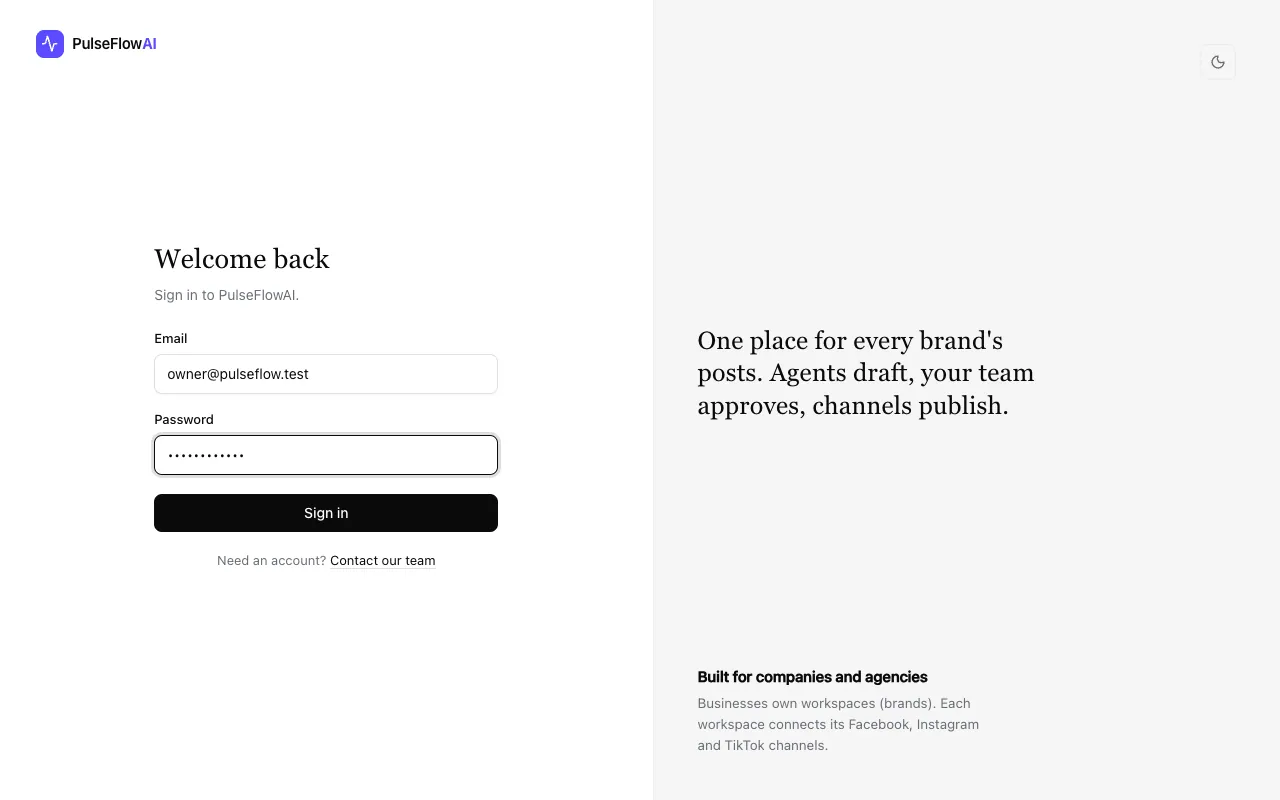
Step 2: Enter your email and password
Use the email address your account was created with. A new account starts with a temporary password, so change it after your first sign-in (see the team guide).
-
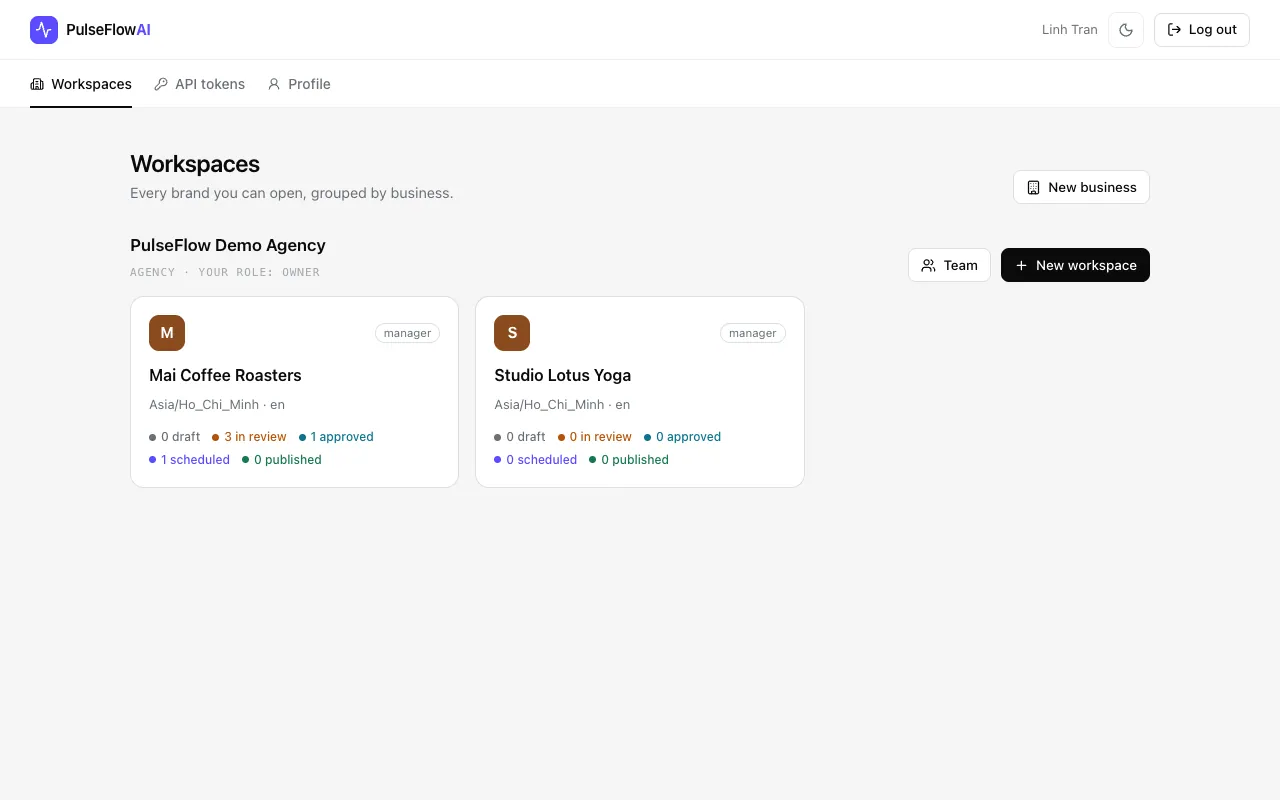
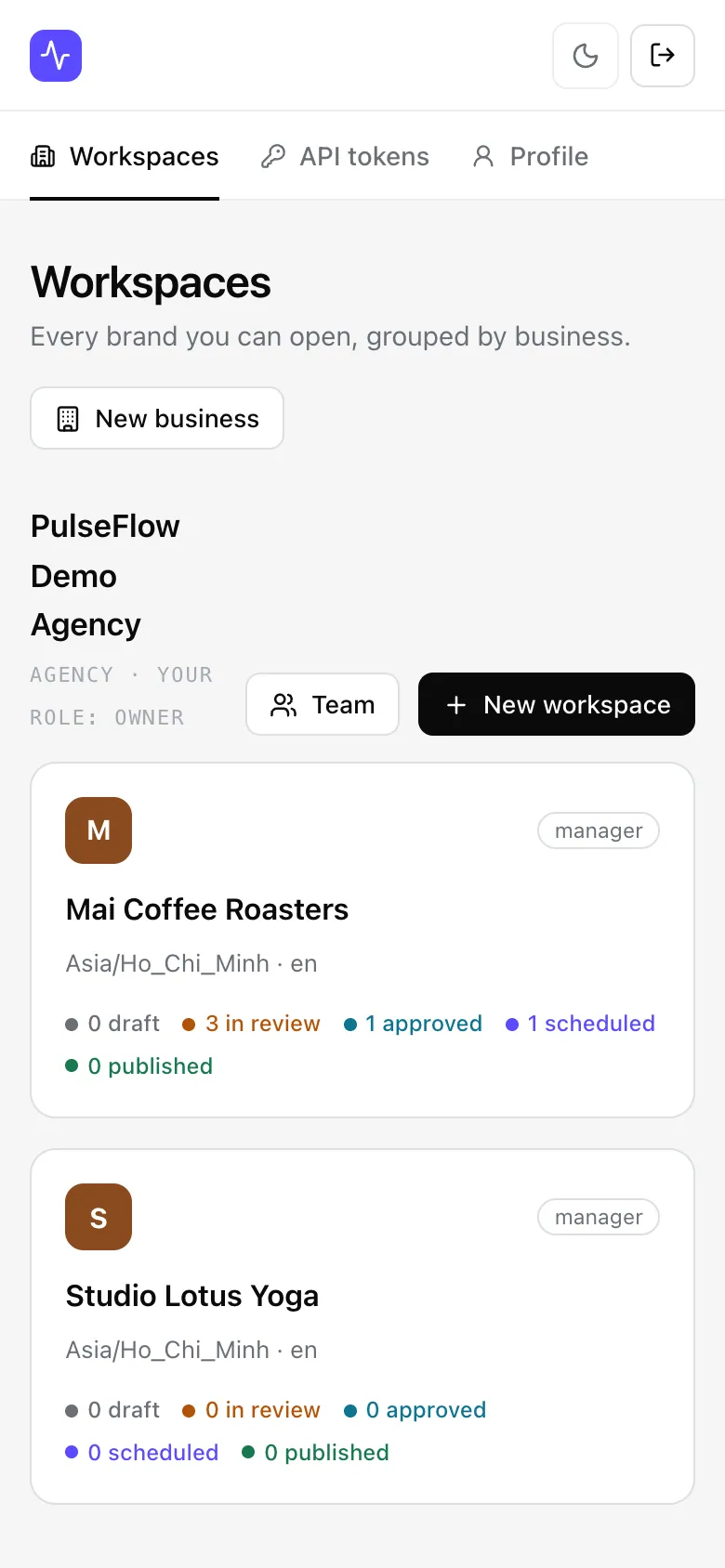
Step 3: Find your workspaces
You land on Workspaces. Each card is one brand. It shows your role there (manager, editor, reviewer or viewer) and how many posts are in the main statuses. You only see workspaces you were added to.
-
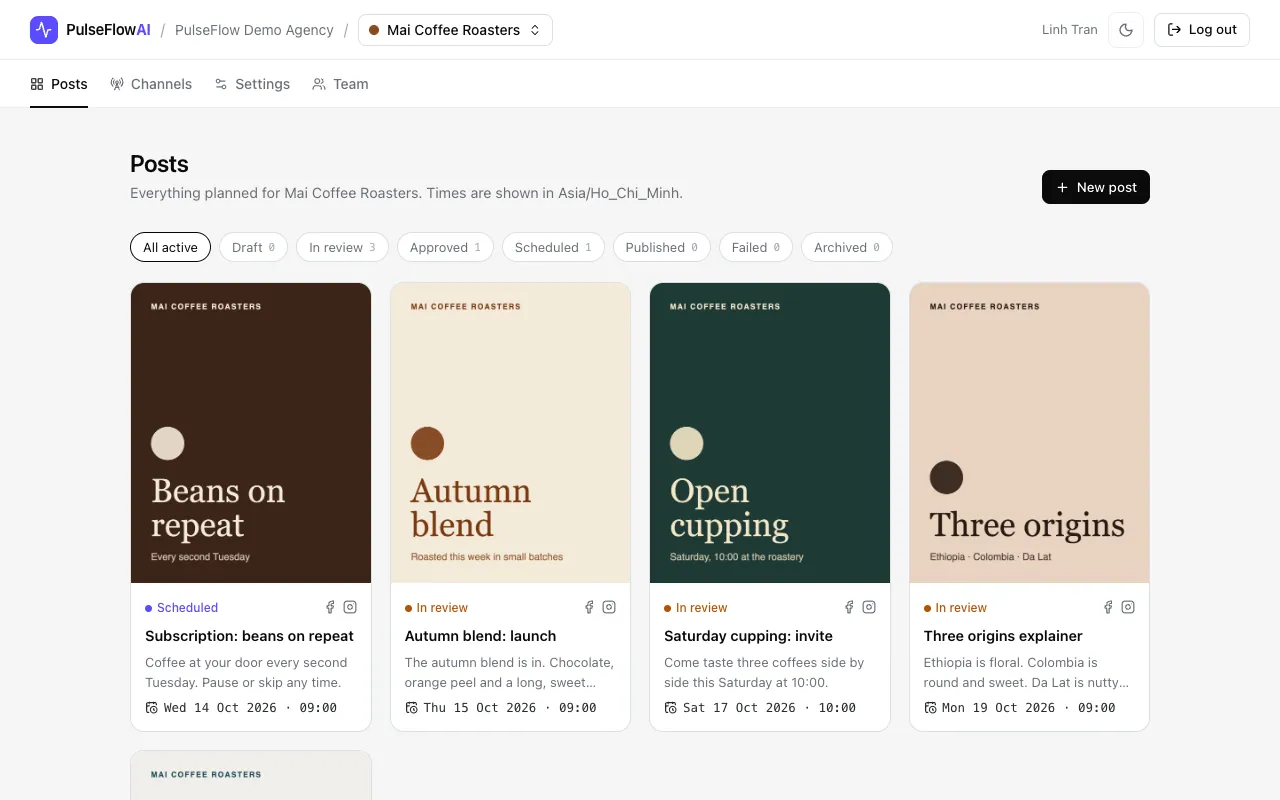
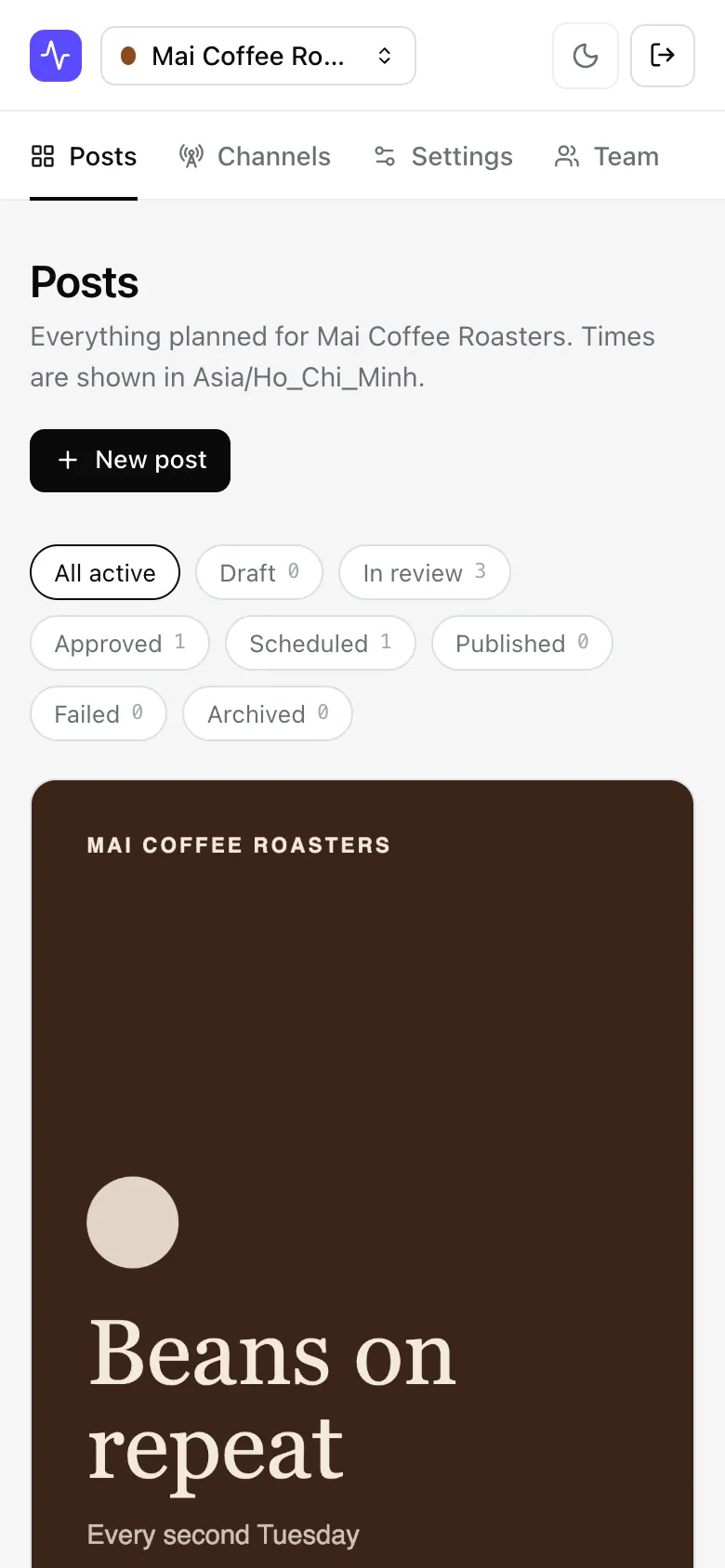
Step 4: Open a workspace
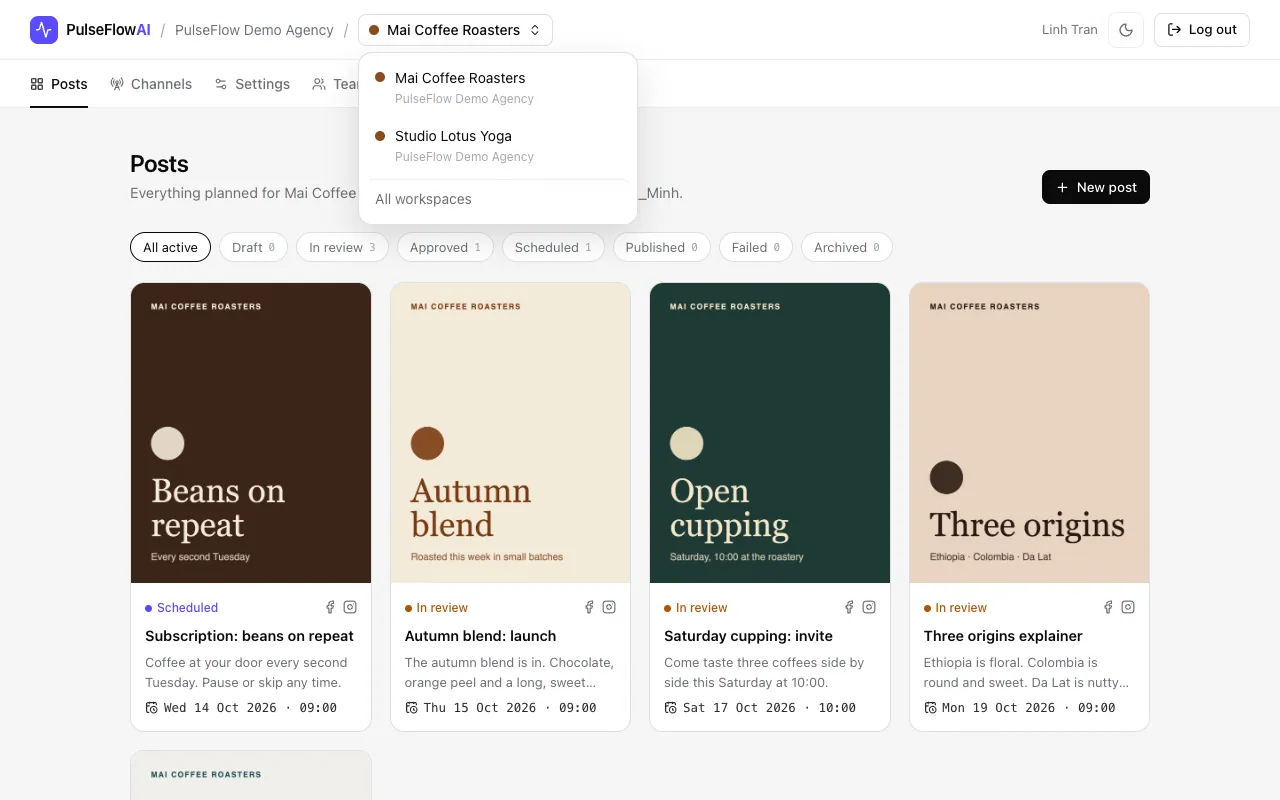
Click a brand to open its posts. The feed lists every active post with its image, status, channels and publish time. Posts and Channels are always there. Settings and Team appear only when your role allows them.
-
Step 5: Switch brands
Open the brand menu in the top bar to jump to another workspace. All workspaces takes you back to the list.
On a phone
The app is responsive, so the same steps work on a small screen.
Tips
- The app works on a phone. The review screens are laid out for a small screen, so you can approve posts on the move.
- If you forget your password, email [email protected] or ask your account owner.
Common questions
I get a "not found" page for a workspace or post.
You are not a member of that workspace. PulseFlowAI shows the same page whether a workspace does not exist or you have no access. Ask the business owner or an admin.
A brand I expected is missing from my list.
Workspaces only appear once someone gives you a role in them. Ask the business owner or an admin to add you on the Team page.