Review and approve a post
Posts move from draft to in review to approved to scheduled. Reviewers and managers decide whether a post is ready. Only managers schedule and publish.
Watch it in a short video
Before you start
- The Reviewer or Manager role in the workspace.
- At least one post in review (an editor or an AI agent submitted it).
Steps
-
Step 1: Filter the feed to In review
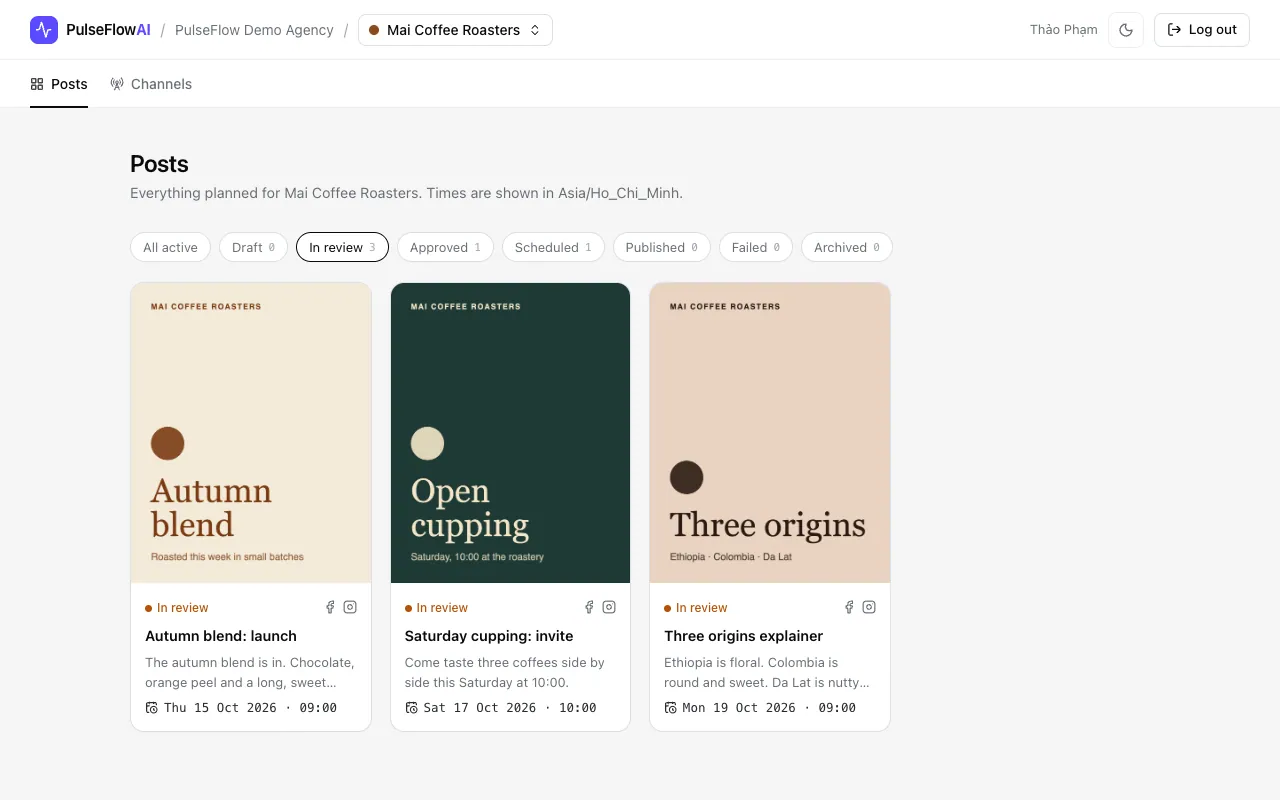
Open the workspace and click the In review filter. The number beside each filter is how many posts it holds.
-
Step 2: Open a post
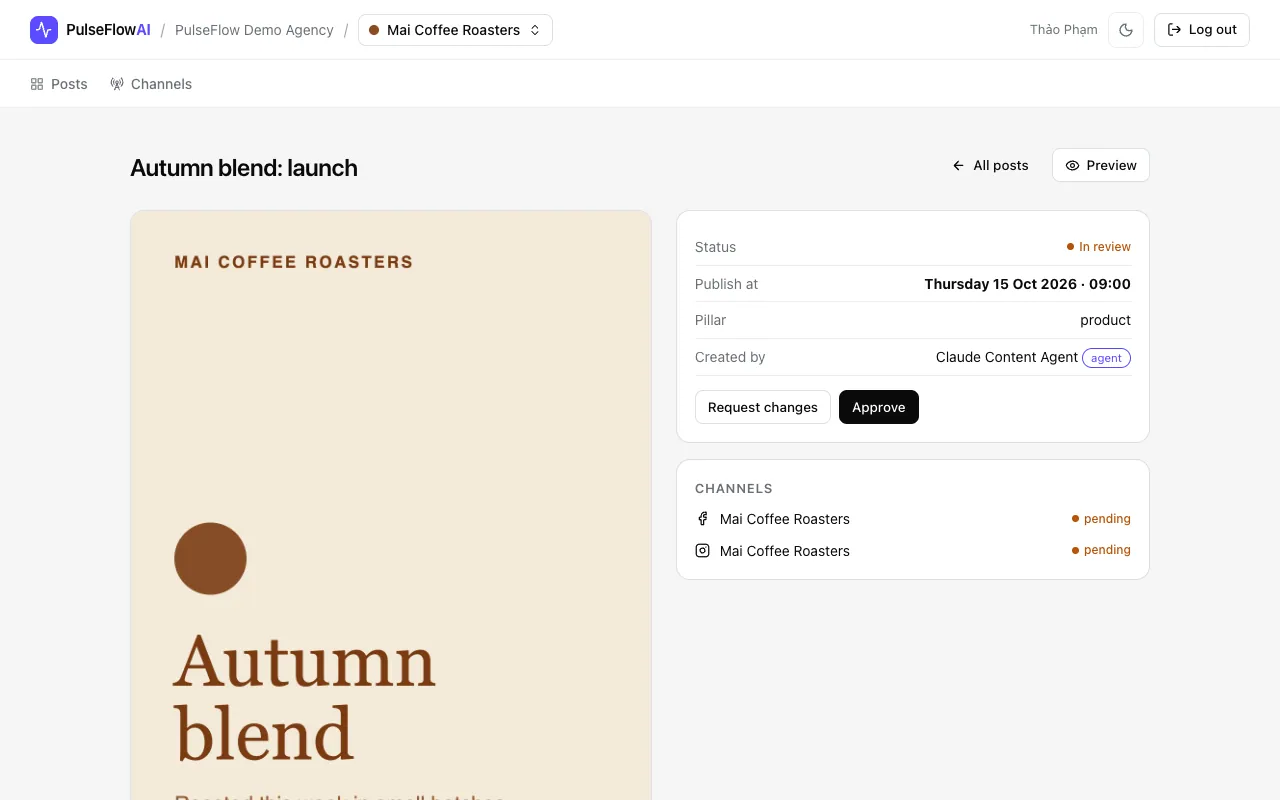
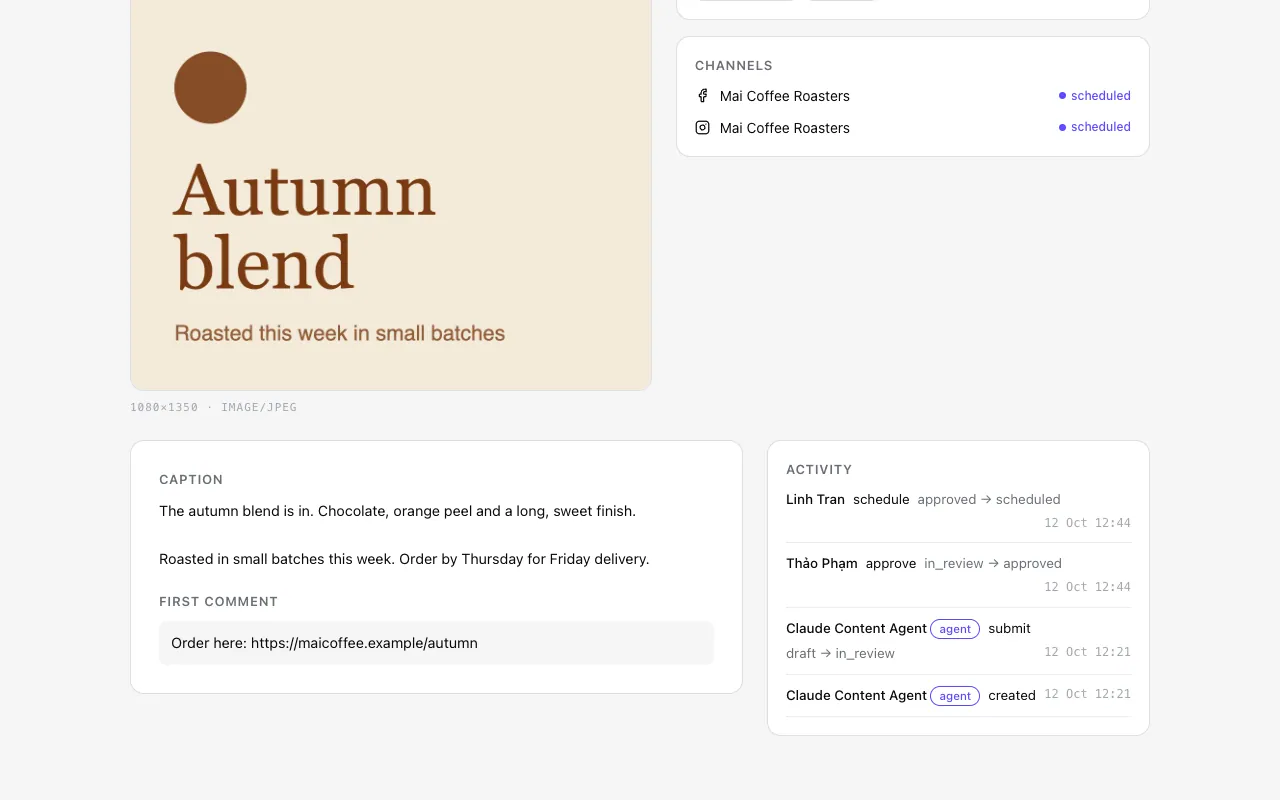
Click a post. The page shows status, publish time, who created it (people or an agent), the channels and, below the image, the caption and first comment.
-
Step 3: Check the preview
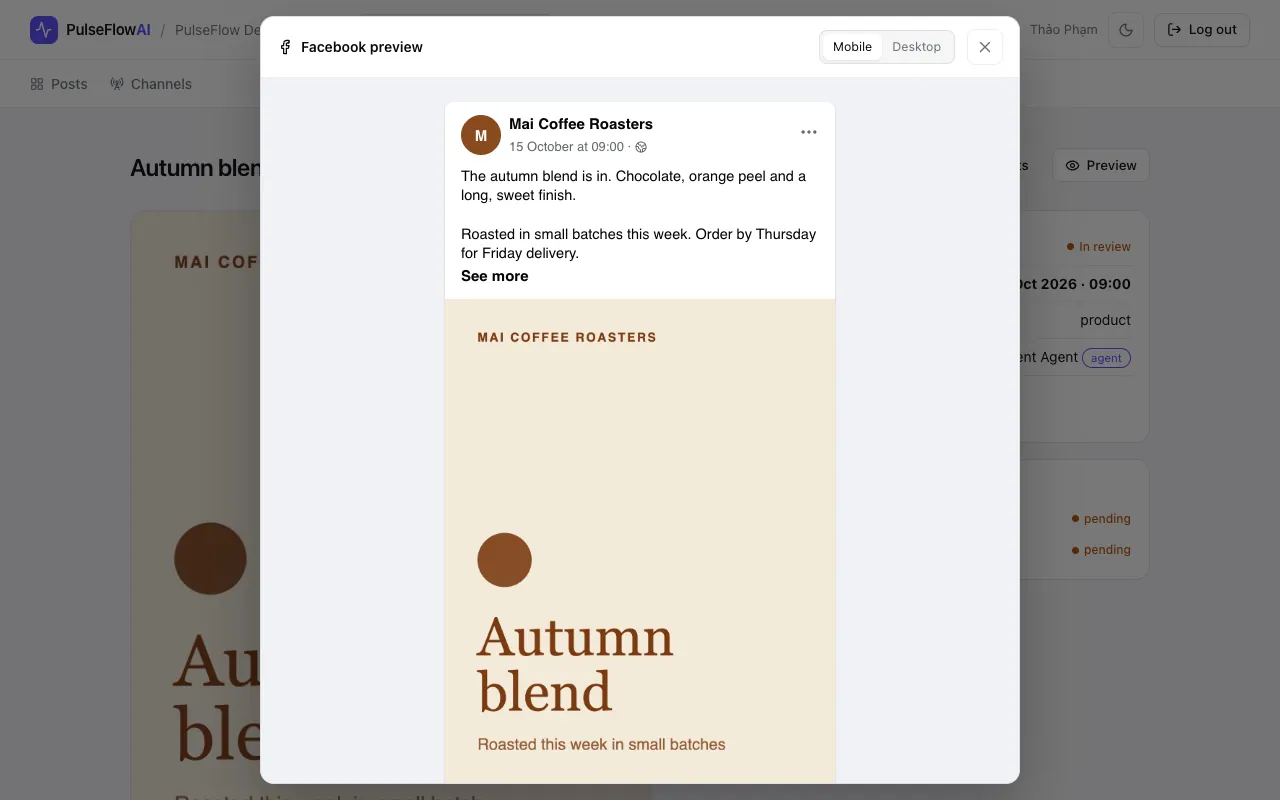
Click Preview to see the post as it will appear on Facebook, on a phone or a desktop width.
-
Step 4: Approve or request changes
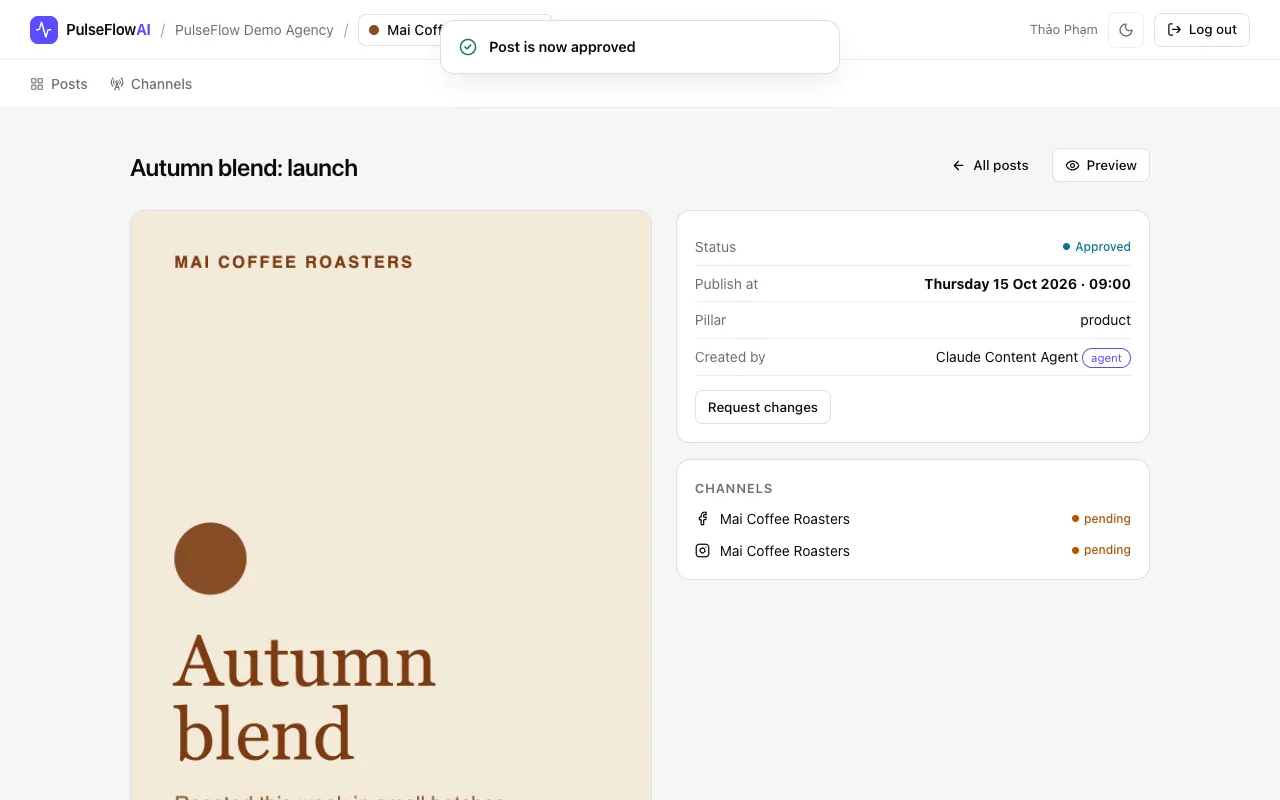
Approve moves the post to Approved. Request changes sends it back to Draft so the editor can fix it. Both are recorded in the activity log with your name.
-
Step 5: A manager takes over
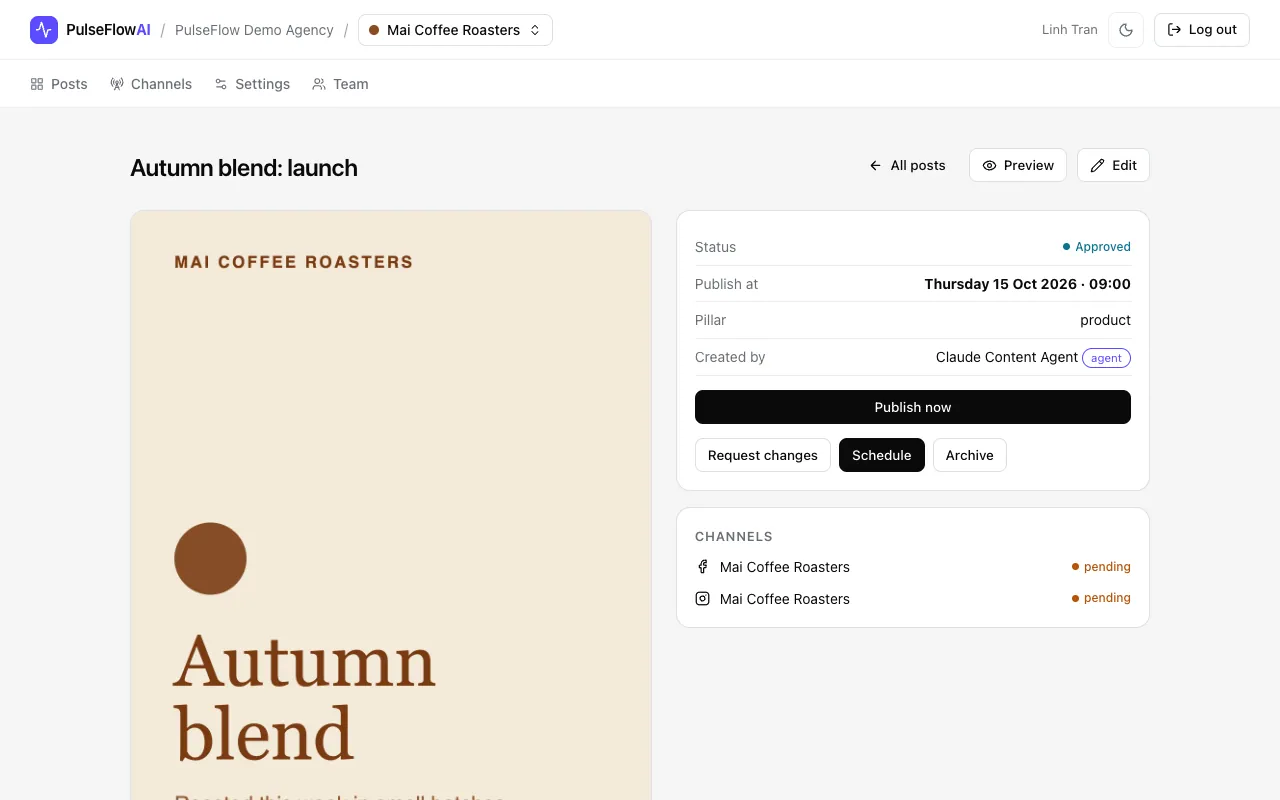
Managers also see Schedule, Publish now and Archive. Reviewers do not, so a post cannot go live by the same person who only reviews.
-
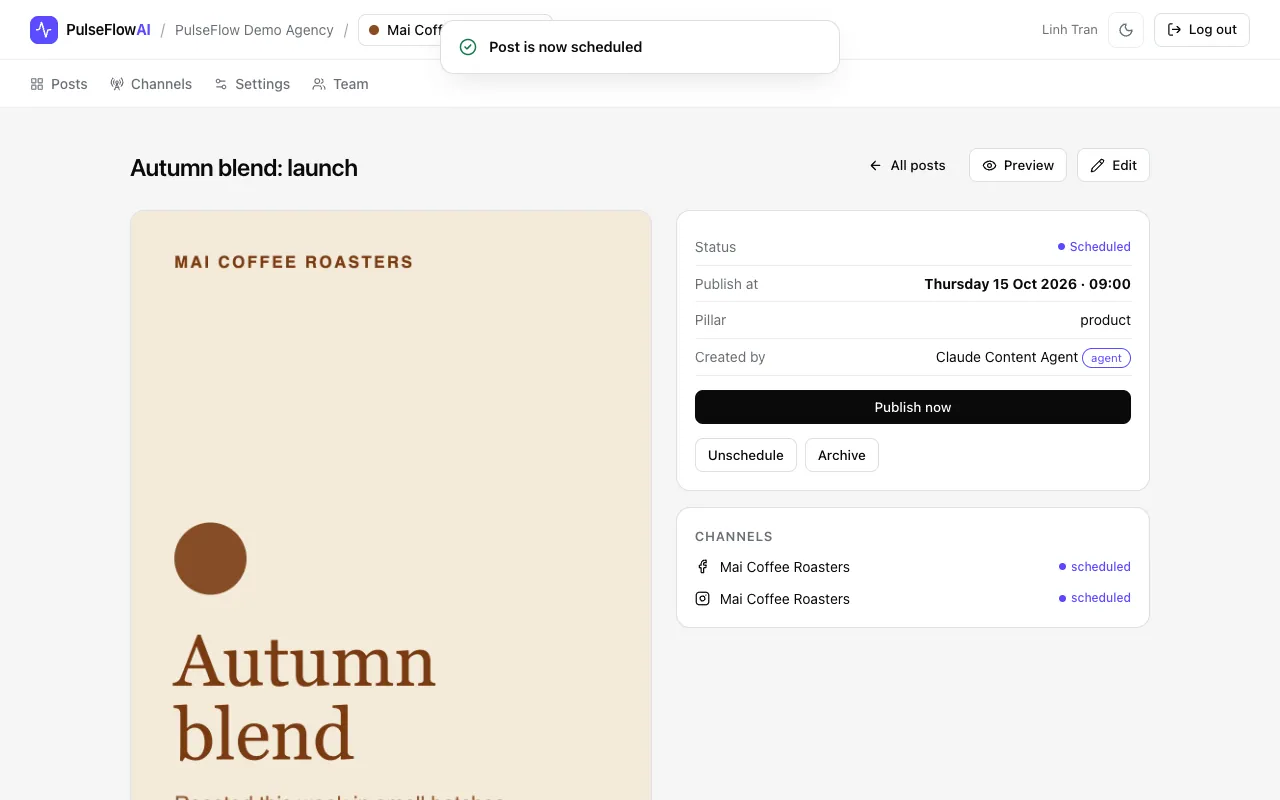
Step 6: Schedule the post
Click Schedule. The post needs a publish date first. The status becomes Scheduled and each channel shows scheduled.
-
Step 7: Read the activity log
Scroll to Activity. It lists who created, submitted, approved and scheduled the post, newest first, with the time in the workspace timezone. Status changes show the raw status names, such as draft to in_review. Agent actions carry an agent label.
On a phone
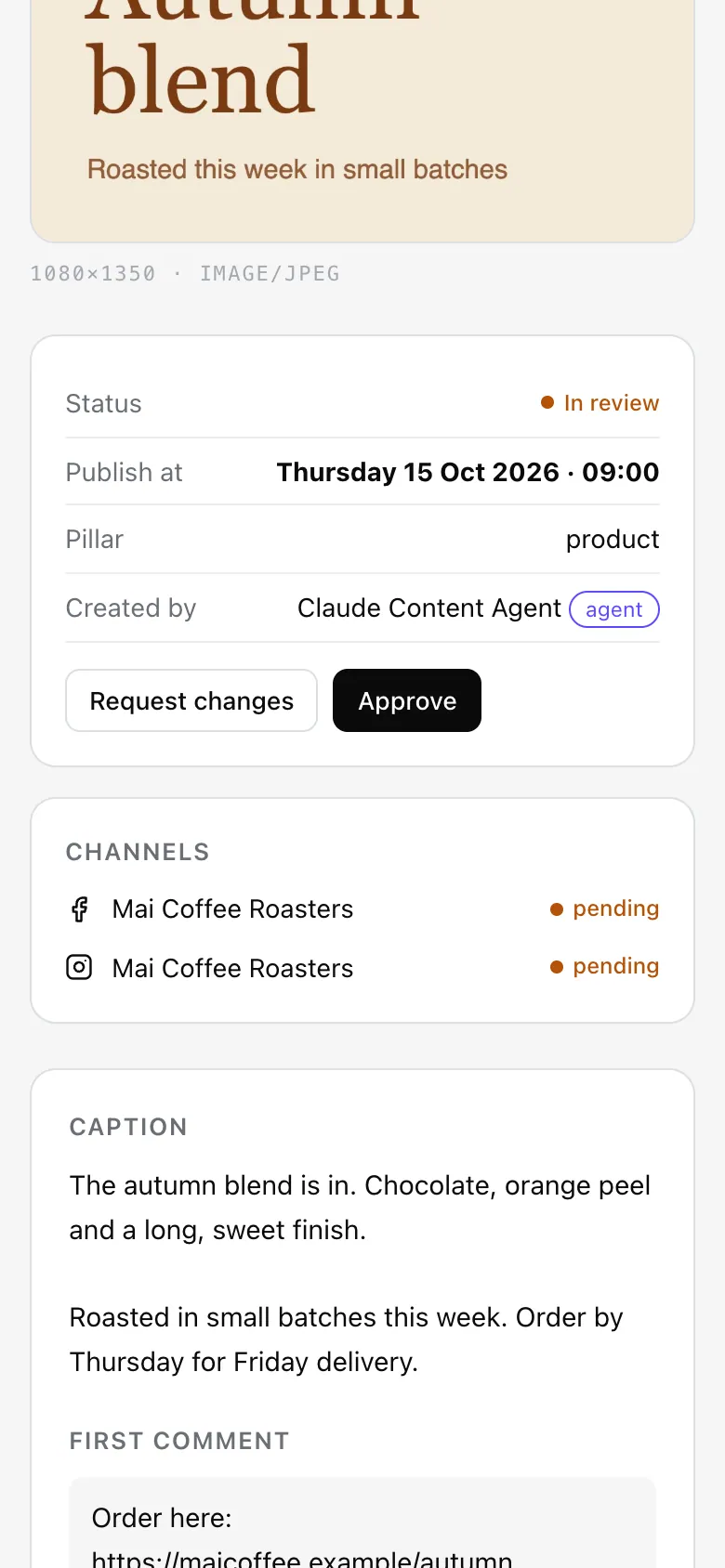
The app is responsive, so the same steps work on a small screen.
Tips
- Request changes returns the post to Draft. Say what to change in your message to the editor, because the log records the action, not a long comment.
- You can review on a phone too. Scroll past the image to the status panel, where the Approve and Request changes buttons are.
Common questions
Why can I not approve a post?
Only reviewers and managers can approve, and only while the post is In review. Editors and viewers do not see the button.
Can I undo an approval?
Yes. Request changes works on an approved post too and returns it to Draft. A manager can also Unschedule a scheduled post to return it to Approved.