Create a post and preview it
A post is one caption with its images, sent to one or more channels at one time. You can save it as a draft or send it to review straight away.
Watch it in a short video
Before you start
- The Editor or Manager role in the workspace.
- At least one channel in the workspace (see the connect guide).
- Images as PNG, JPEG or WebP.
Steps
-
Step 1: Click New post
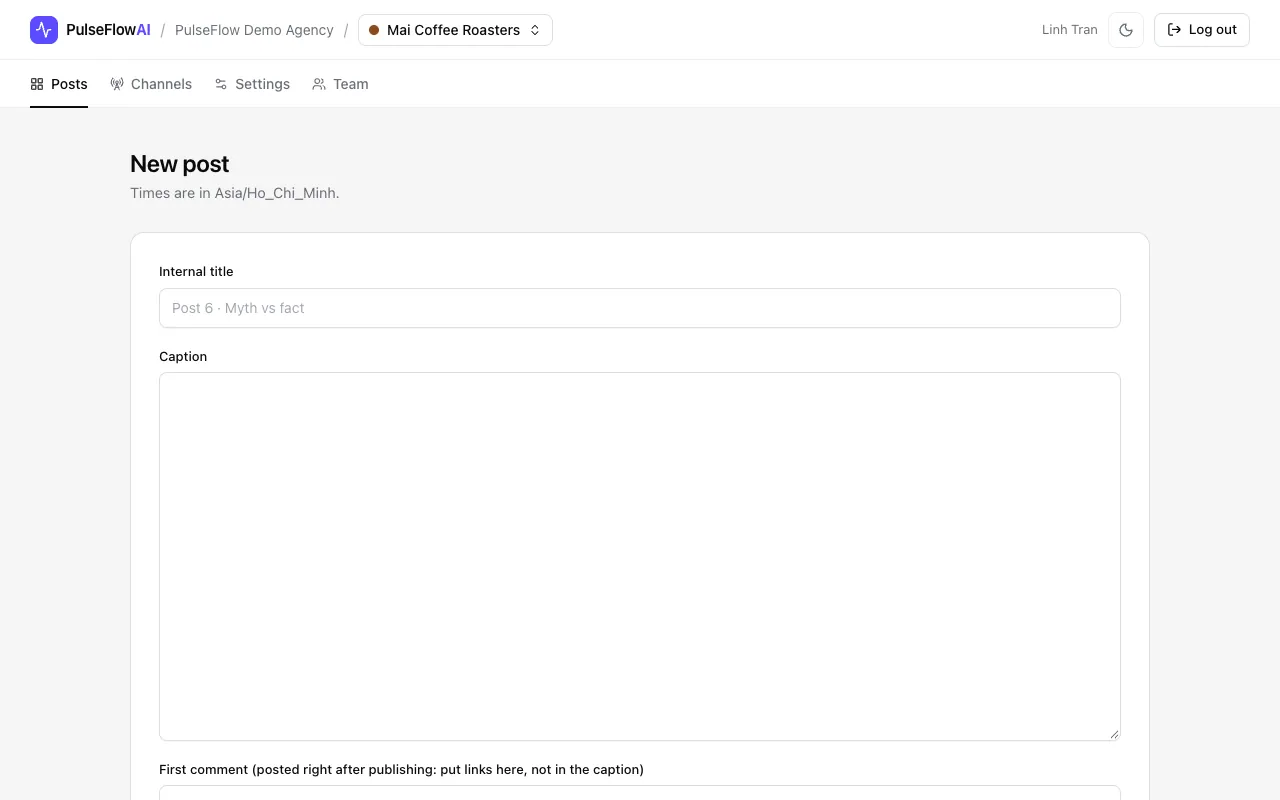
Open the workspace and click New post. The form shows the workspace timezone under the title, because every time you enter is read in that timezone.
-
Step 2: Write the title and caption
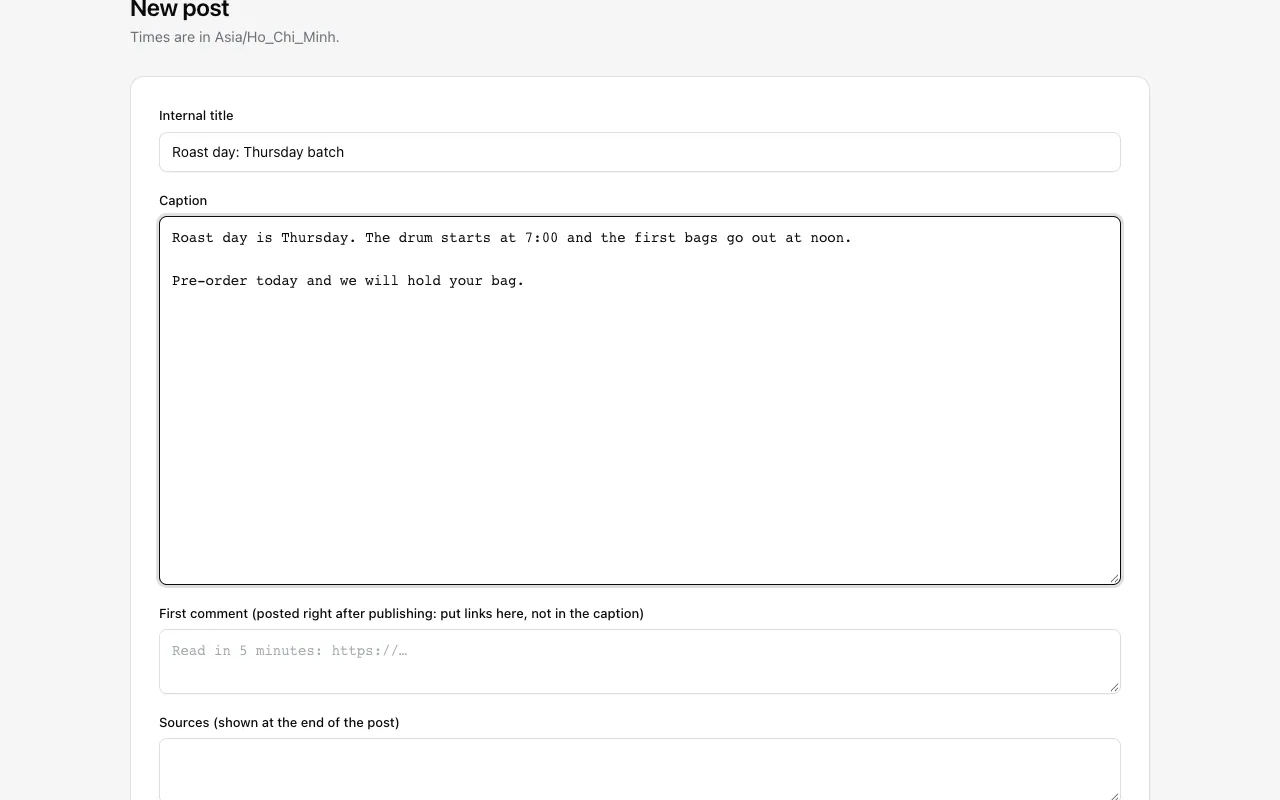
Internal title is for your team only. Caption is the text that gets published. If the post cites studies or data, type only the citations in Sources. PulseFlowAI adds the "Sources:" label and puts the line at the end of the post.
-
Step 3: Put links in the first comment
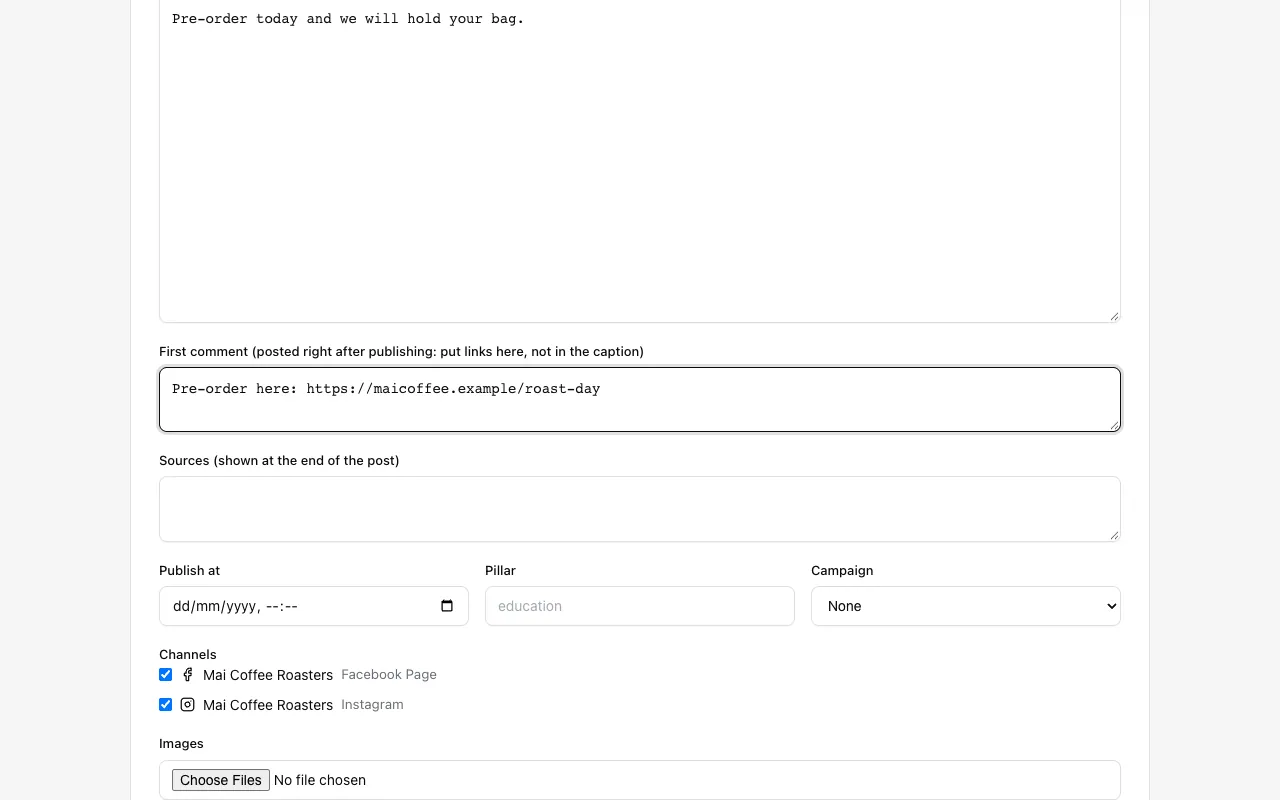
Many teams keep links out of the caption. Write the link in First comment and PulseFlowAI posts it as the first comment right after the post goes live.
-
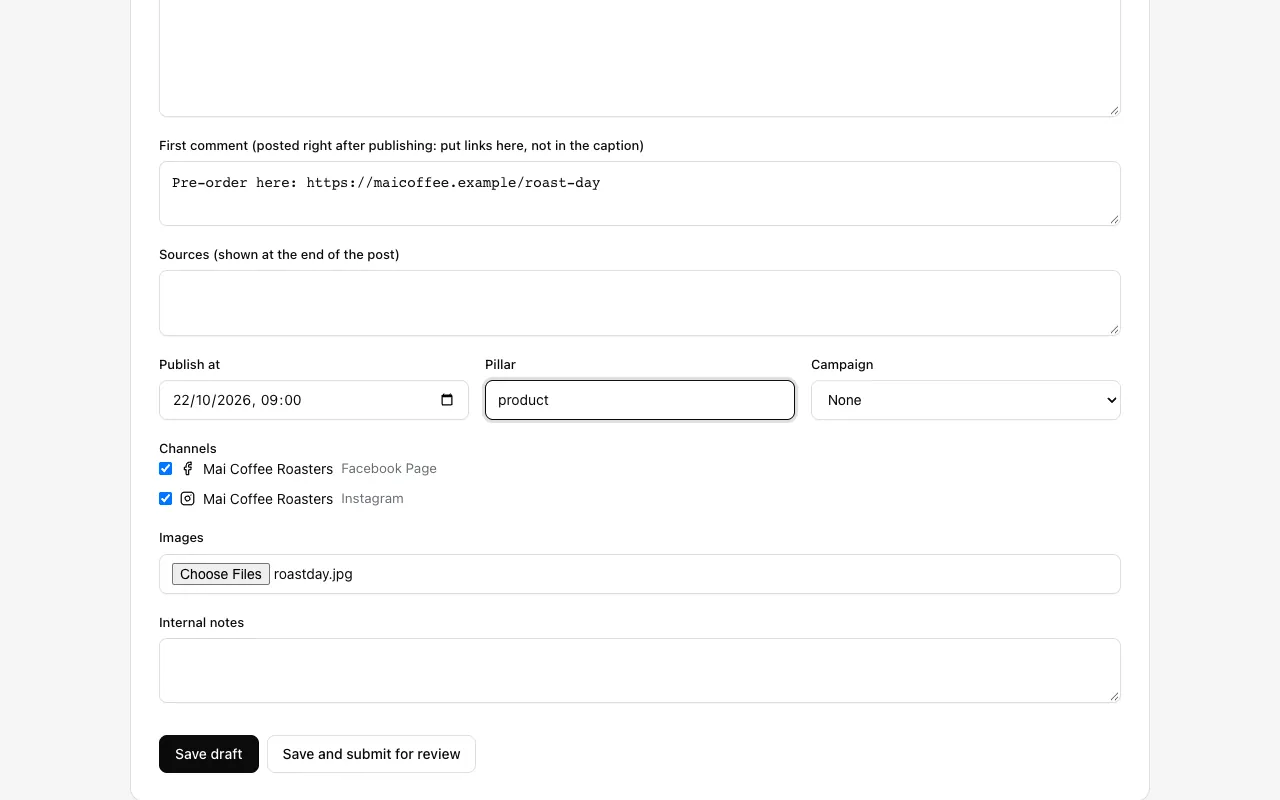
Step 4: Choose channels and publish time
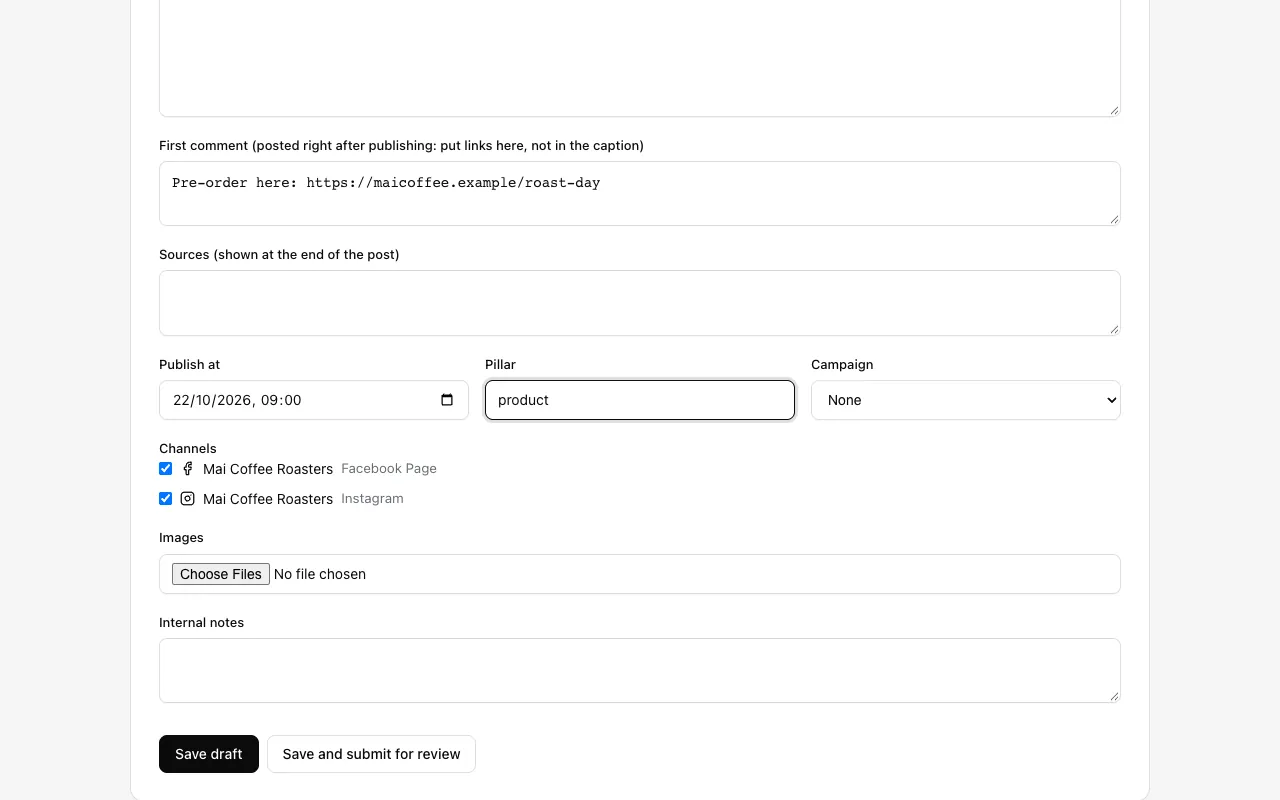
Set Publish at, optionally a Pillar (a content theme such as education or offers). A Campaign can be chosen if our team has set one up for you. All Channels are ticked by default, so untick the ones this post should not go to.
-
Step 5: Add images
Choose one or more images. You can add or remove images later from the post page with Edit.
-
Step 6: Save the draft
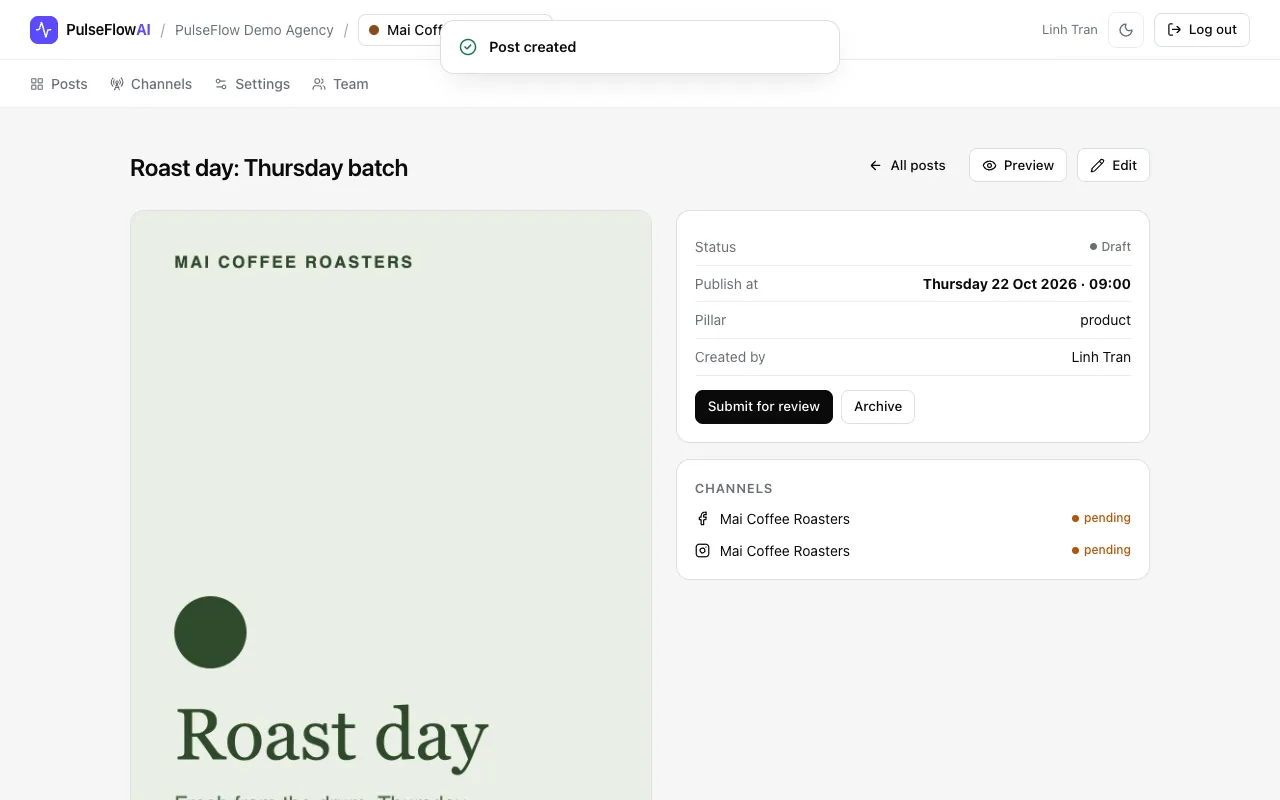
Click Save draft, or Save and submit for review to send it to reviewers at once. The post page shows its status, publish time and channels. Edit reopens the form while the post is not published.
-
Step 7: Preview the post
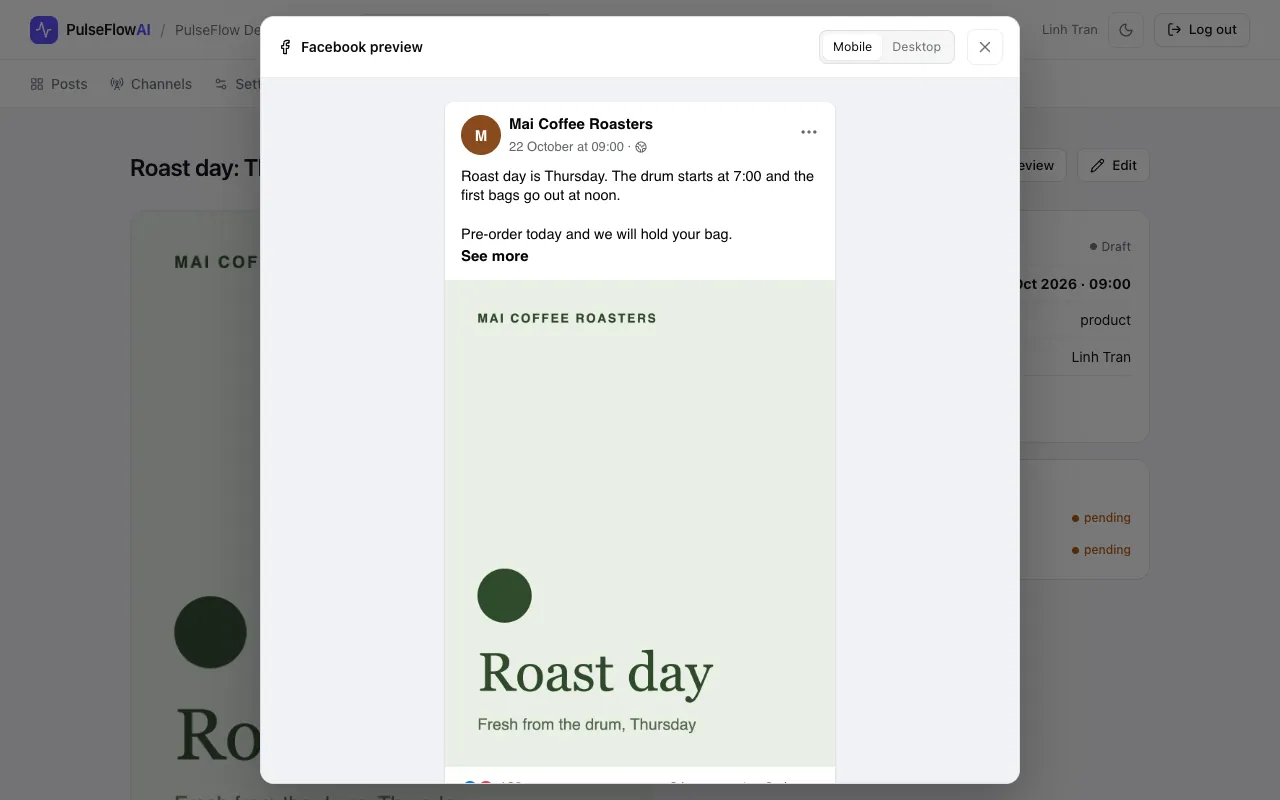
Click Preview for a Facebook-style view of the caption and image. Switch between Mobile and Desktop widths, and close it with the cross or Escape.
On a phone
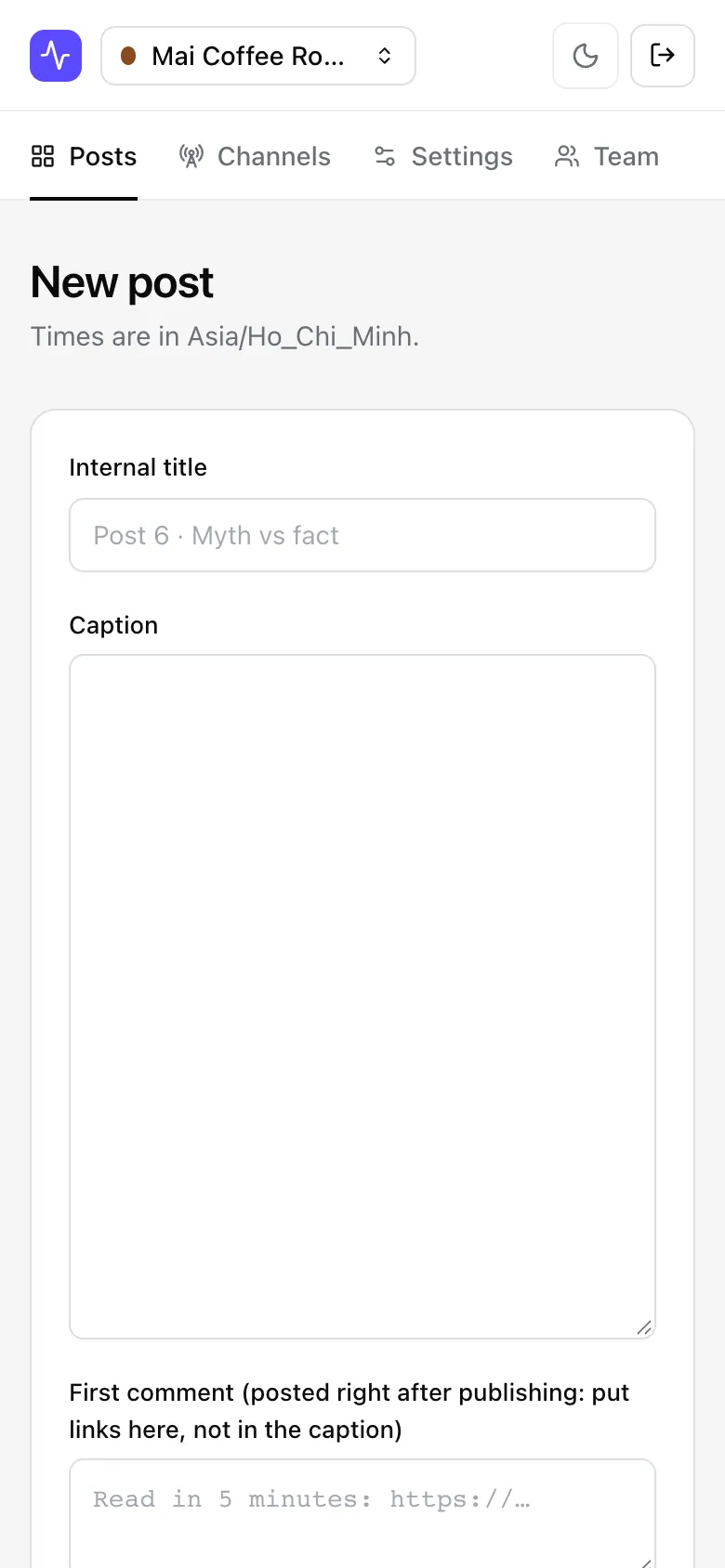
The app is responsive, so the same steps work on a small screen.
Tips
- Write the caption for the channel. Instagram and Facebook readers see the same caption, so keep it readable without the link.
- Check the preview on both Mobile and Desktop before you submit. Most readers see the mobile layout. The preview shows Facebook only, so Instagram may look a little different.
- Keep each image under 8 MB (Instagram's limit). A file over 20 MB or of an unsupported type is skipped without a message, so check that every image shows up before you save.
Common questions
Why is there no channel to tick?
The workspace has no channels yet. A manager adds them on the Channels tab.
Which timezone is Publish at in?
The workspace timezone, shown under the page title. For example Asia/Ho_Chi_Minh. The same time is shown back to everyone in that timezone.