Invite your team and set roles
People have a business role and, for each workspace, a workspace role. Owners and admins manage every workspace. Members only see the workspaces where you give them a role.
Watch it in a short video
Before you start
- You are an owner or admin of the business.
- The person's email address and full name.
Steps
-
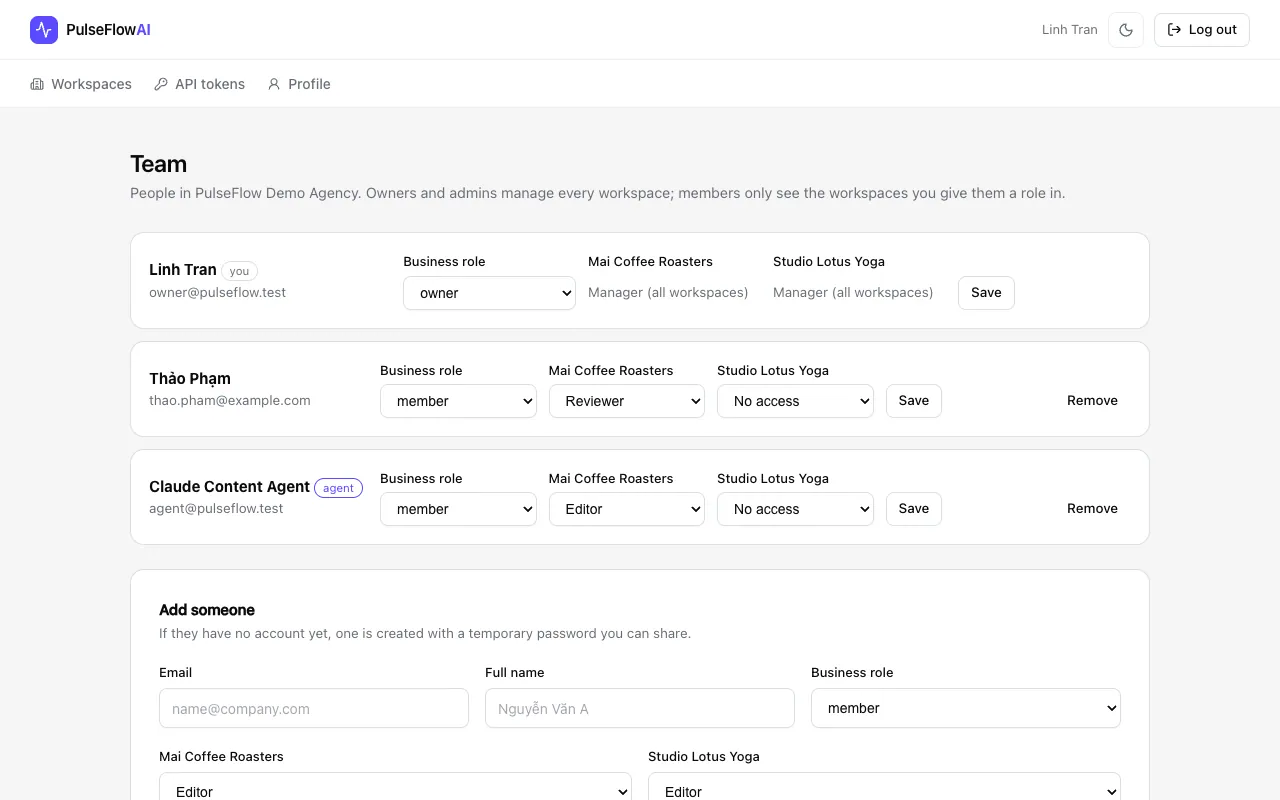
Step 1: Open the Team page
On Workspaces, click Team next to your business. Business owners and admins also get a Team tab inside a workspace. Other people cannot open the page. It lists everyone in the business with their roles.
-
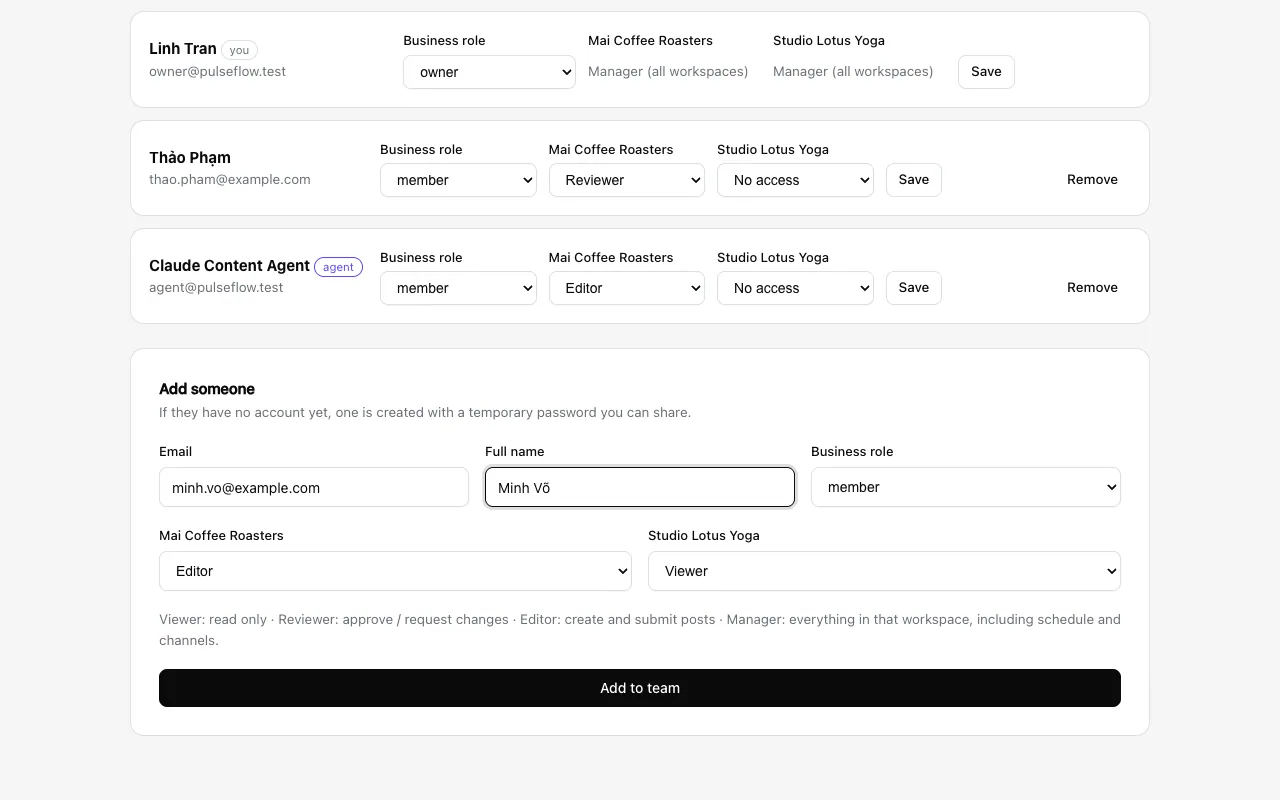
Step 2: Fill in "Add someone"
Enter their email and full name. Pick a business role: member, admin, or owner (only an owner can add another owner). Then pick a role in each workspace, from No access to Manager.
-
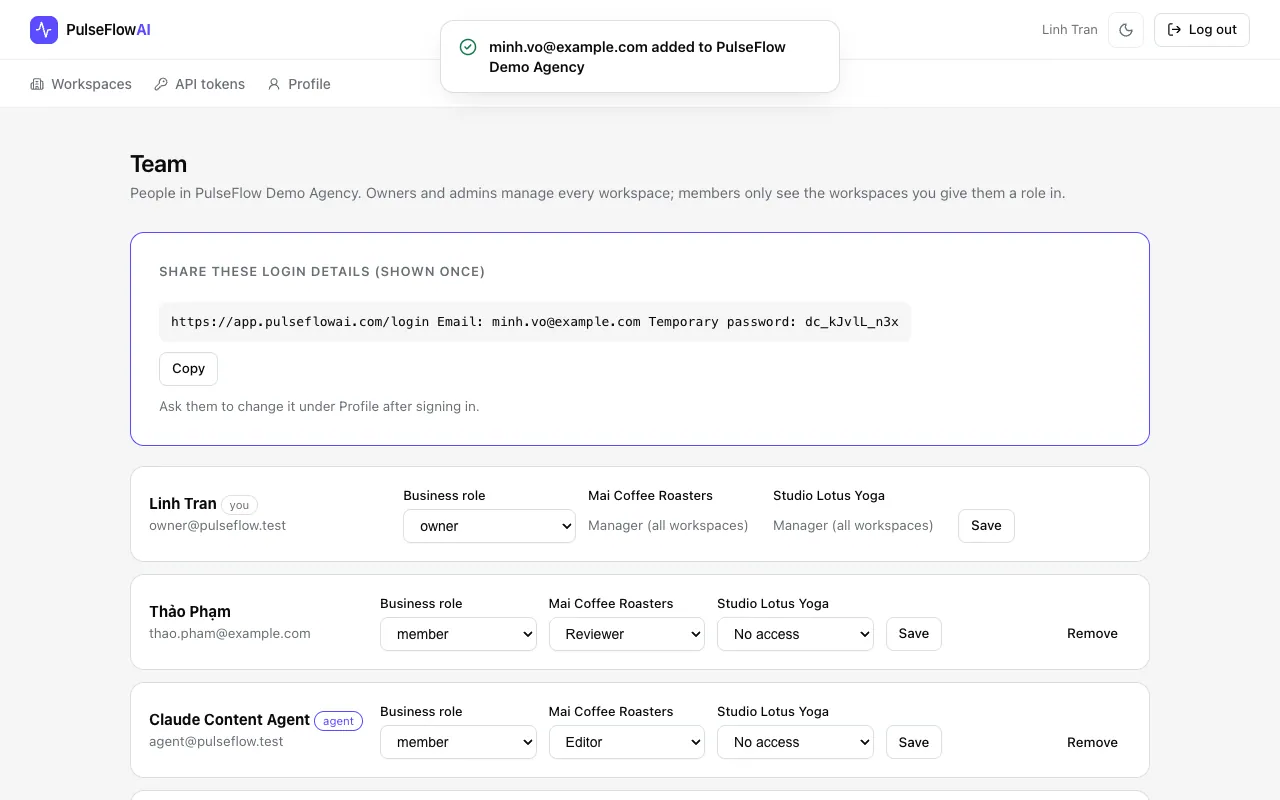
Step 3: Copy the temporary password
Click Add to team. If the person has no account yet, PulseFlowAI creates one and shows the login details with a temporary password. It is shown once, so copy it and send it privately. If they already have an account, they sign in with their existing password.
-
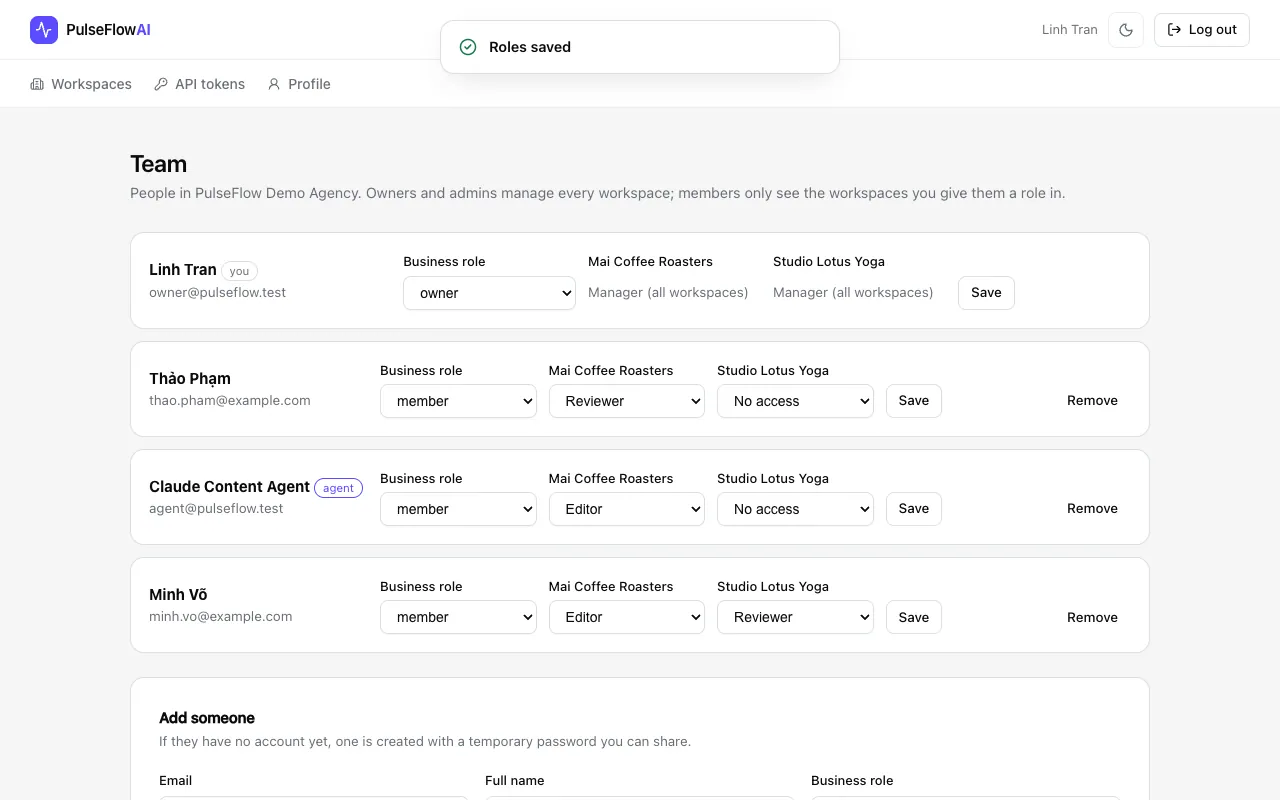
Step 4: Change roles later
Every person has a row with their business role and one role per workspace. Change a role and click Save. Owners and admins are Manager everywhere. Remove takes someone out of the business.
-
Step 5: The new person changes the password
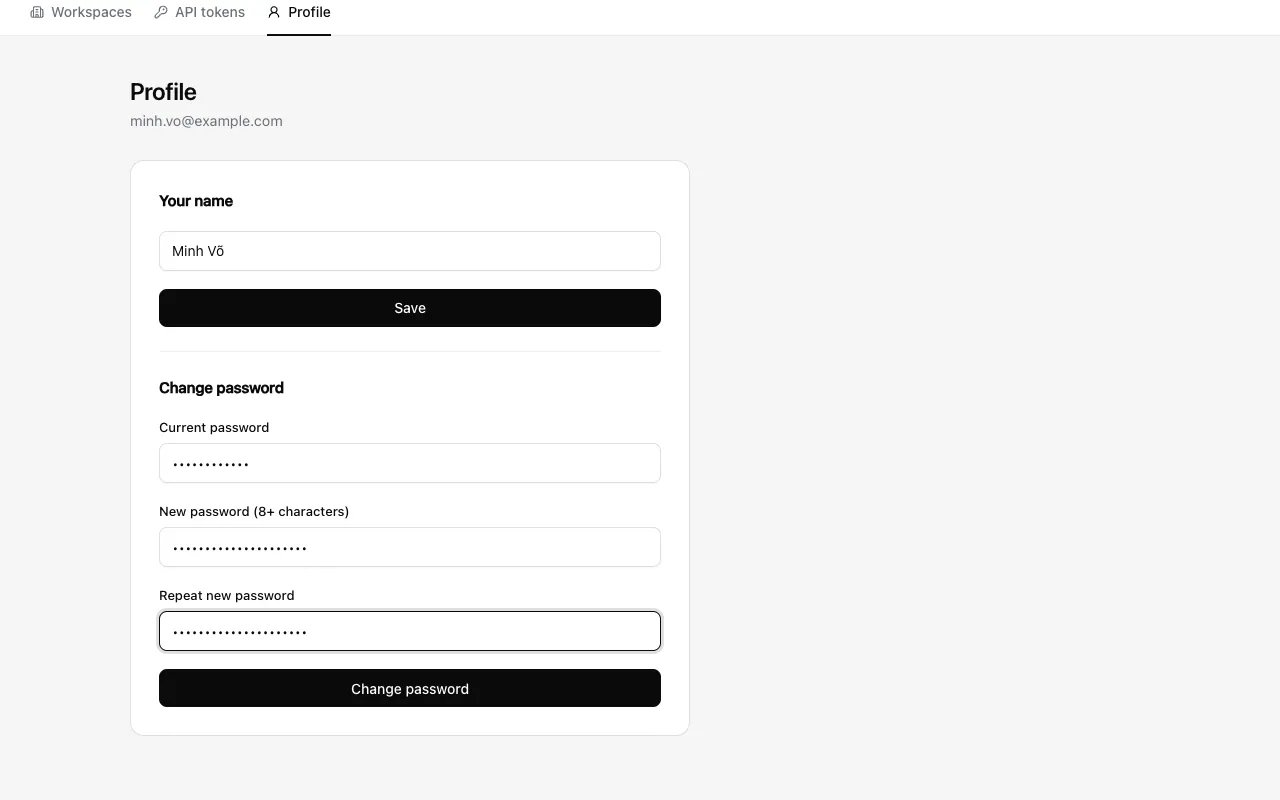
They sign in with the temporary password and open Profile. Under Change password they enter the current password, then a new one of at least 8 characters, twice.
Roles at a glance
| Action | Manager | Editor | Reviewer | Viewer |
|---|---|---|---|---|
| See posts, media and channels | Yes | Yes | Yes | Yes |
| Create and edit drafts, upload images | Yes | Yes | No | No |
| Submit for review | Yes | Yes | No | No |
| Approve or request changes | Yes | No | Yes | No |
| Schedule, publish, archive | Yes | No | No | No |
| Manage channels and brand settings | Yes | No | No | No |
| Manage members (Team page) | Business owners and admins only | No | No | No |
Tips
- Give people the smallest role that lets them do their job. Reviewers can approve but not edit. Viewers can only read.
- Agents (AI tools) are users with the agent label. They normally get the Editor role, so a human still approves.
Common questions
What is the difference between business and workspace roles?
The business role says who manages the account: owner, admin or member. The workspace role says what a person can do inside one brand. Owners and admins count as Manager in every workspace.
I lost the temporary password before copying it.
It is shown once and cannot be shown again. Removing and re-adding the person does not issue a new one, so email [email protected] for a reset.