Schedule posts and auto-publish
Once a post is scheduled, PulseFlowAI checks for due posts every minute and publishes each channel on its own. You do not need to be signed in.
Watch it in a short video
Before you start
- The Manager role in the workspace.
- An approved post with at least one connected channel.
Steps
-
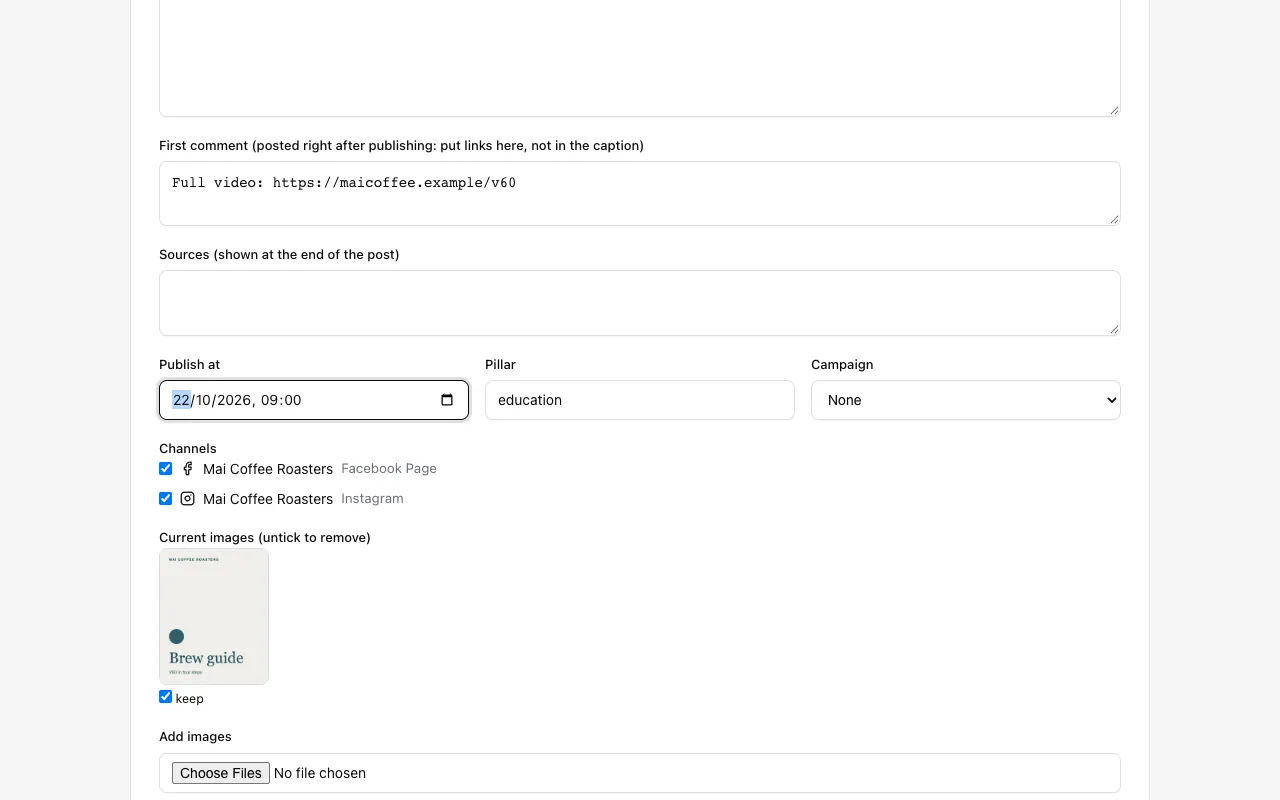
Step 1: Set the publish time
Open the post, click Edit, and set Publish at. The time is read in the workspace timezone, shown under the page title (for example Asia/Ho_Chi_Minh).
-
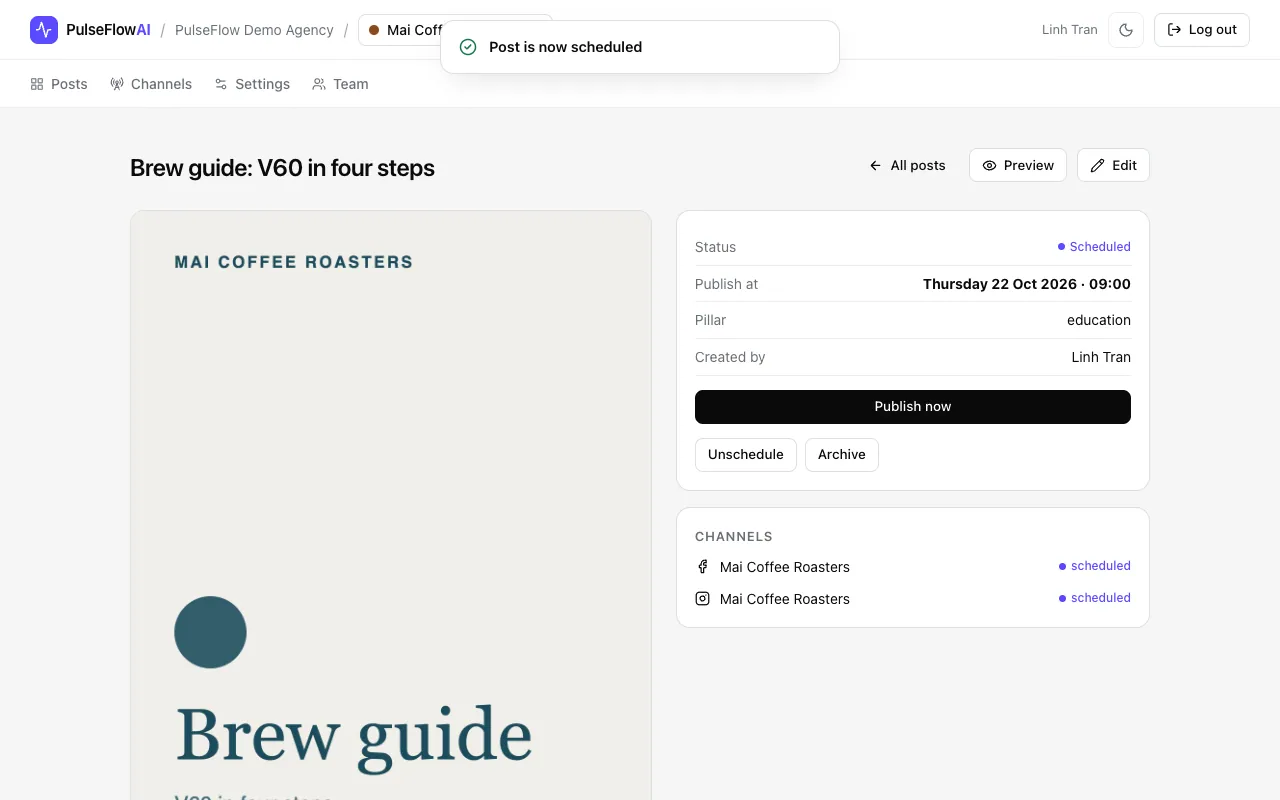
Step 2: Schedule the post
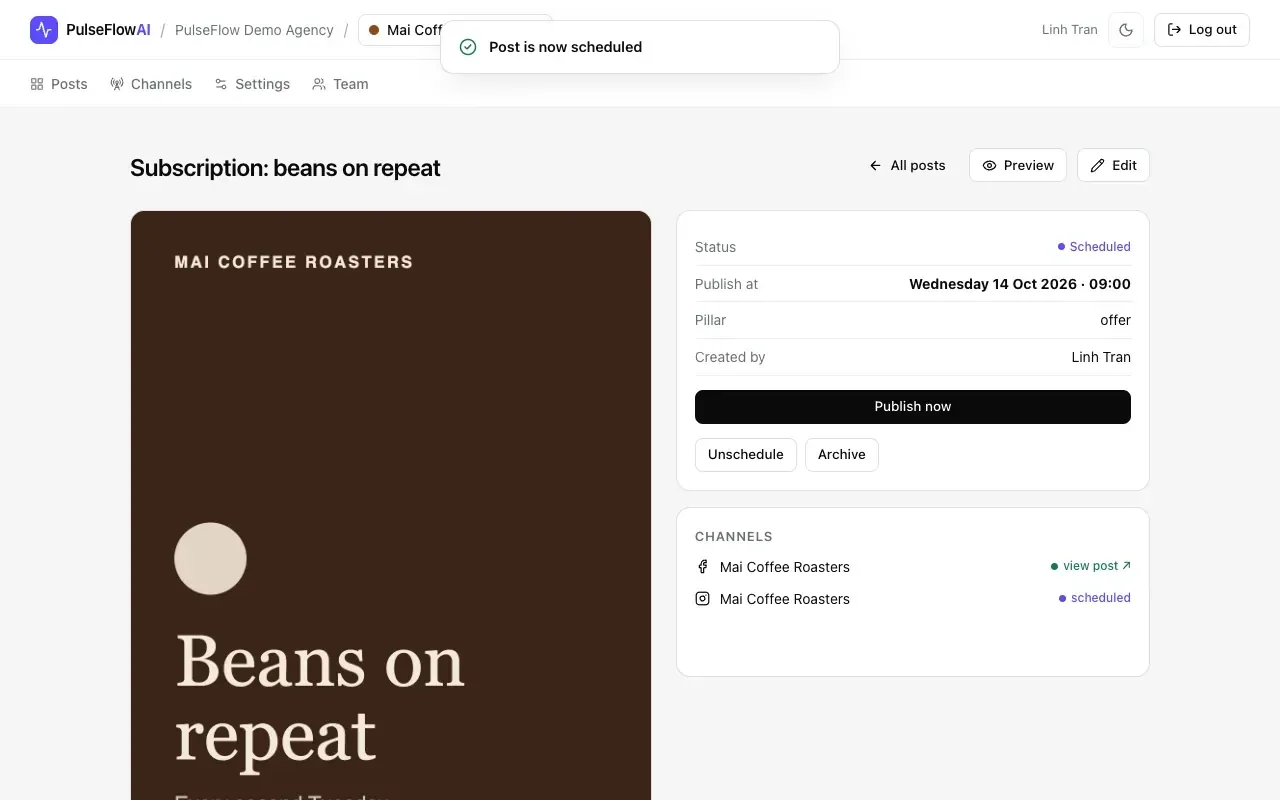
Save the change, then click Schedule. A post must be approved and have a publish date. Status becomes Scheduled and each channel shows scheduled. Unschedule returns it to Approved.
-
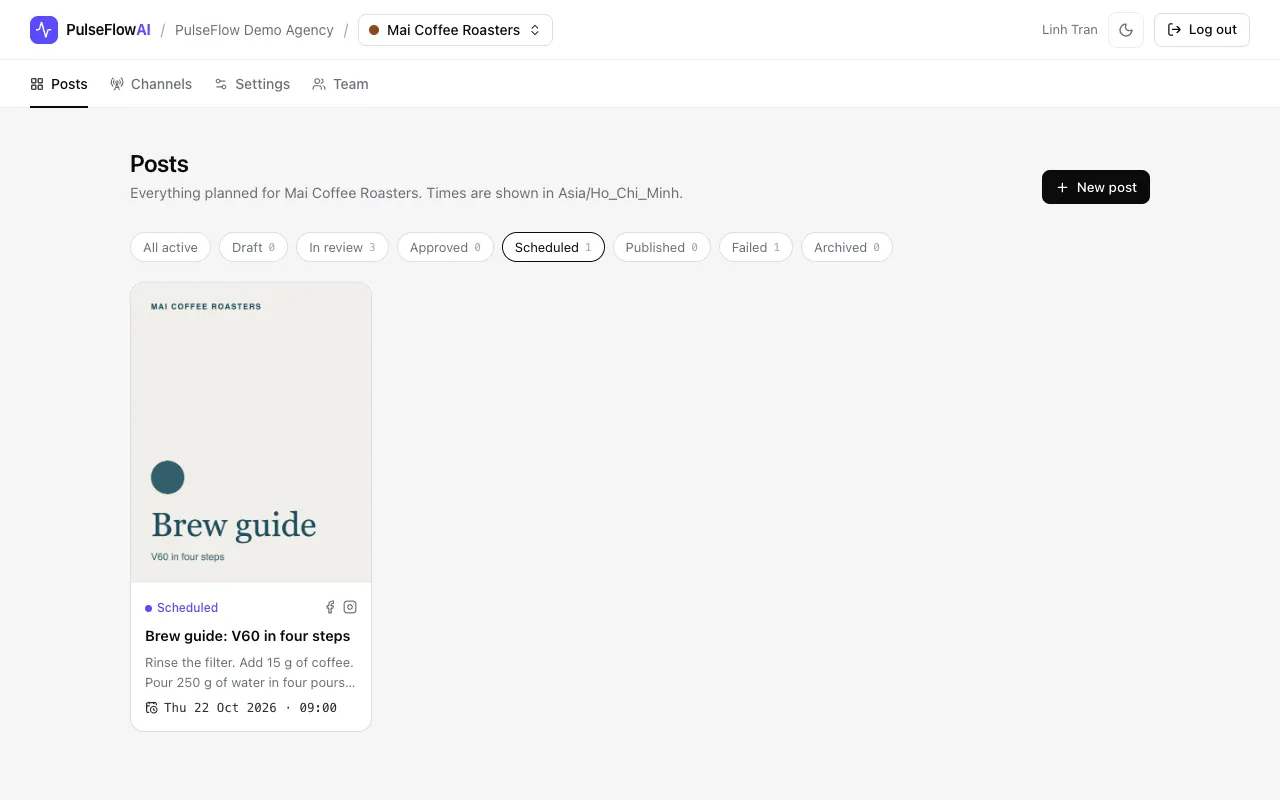
Step 3: Find scheduled posts
Use the Scheduled filter in the feed to see everything waiting to go out, with each publish time.
-
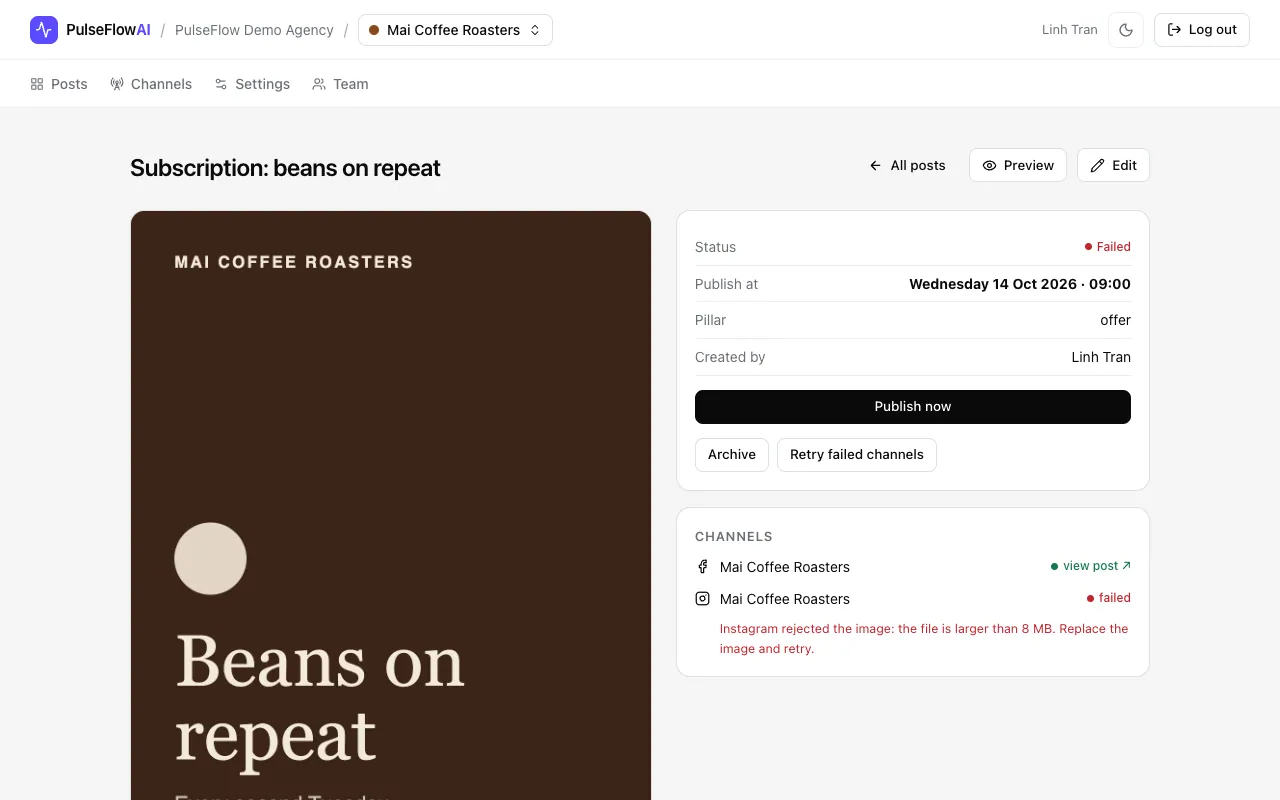
Step 4: See which channel failed
Each channel is published on its own. If one fails, the post shows Failed. The channel that worked keeps its view post link, and the failed channel shows the error message, so you can fix the cause.
-
Step 5: Retry the failed channel
Fix the cause, then click Retry failed channels. Only channels that have not published are queued again, and the post returns to Scheduled. Publish now sends it straight away instead of waiting for the time.
Tips
- The time you see is the workspace timezone for everyone, so a team in two countries reads the same schedule.
- Publishing happens when the minute check runs, so expect a post within about a minute of its time.
Common questions
Schedule says to set a publish date.
A post cannot be scheduled without a Publish at time. Open Edit, set it, save, then schedule.
What does Retry failed channels do?
It moves the post back to Scheduled and queues every channel that has not published. Channels that already published are not posted twice.
Can I publish a post before its time?
Yes. A manager can click Publish now on an approved, scheduled or failed post.