Connect Facebook and Instagram
Publishing runs through Meta. You log in to Meta once, choose which Pages and Instagram accounts belong to the brand, and PulseFlowAI takes it from there.
Watch it in a short video
Before you start
- The Manager role in the workspace.
- A Facebook profile that has admin access to the Page.
- For Instagram: a Professional account (Business or Creator) that is linked to that Page.
Steps
-
Step 1: Open Channels
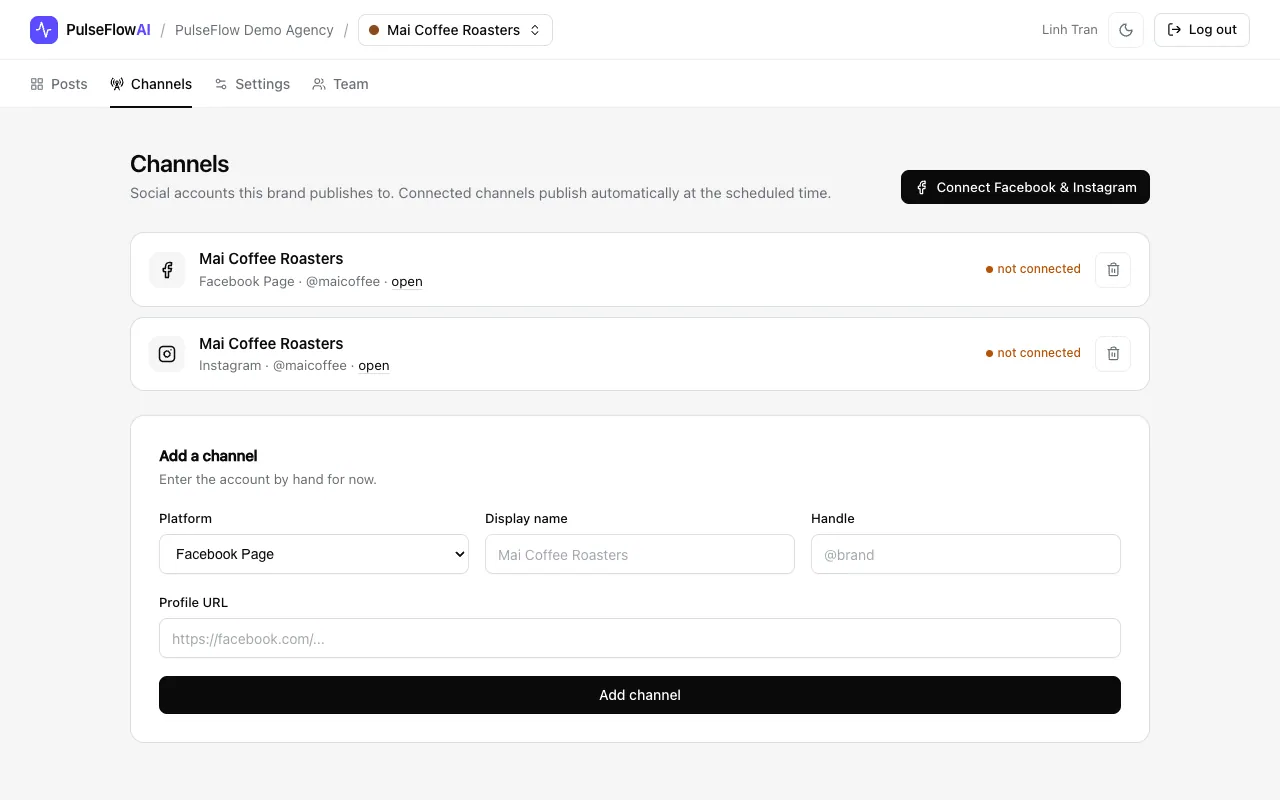
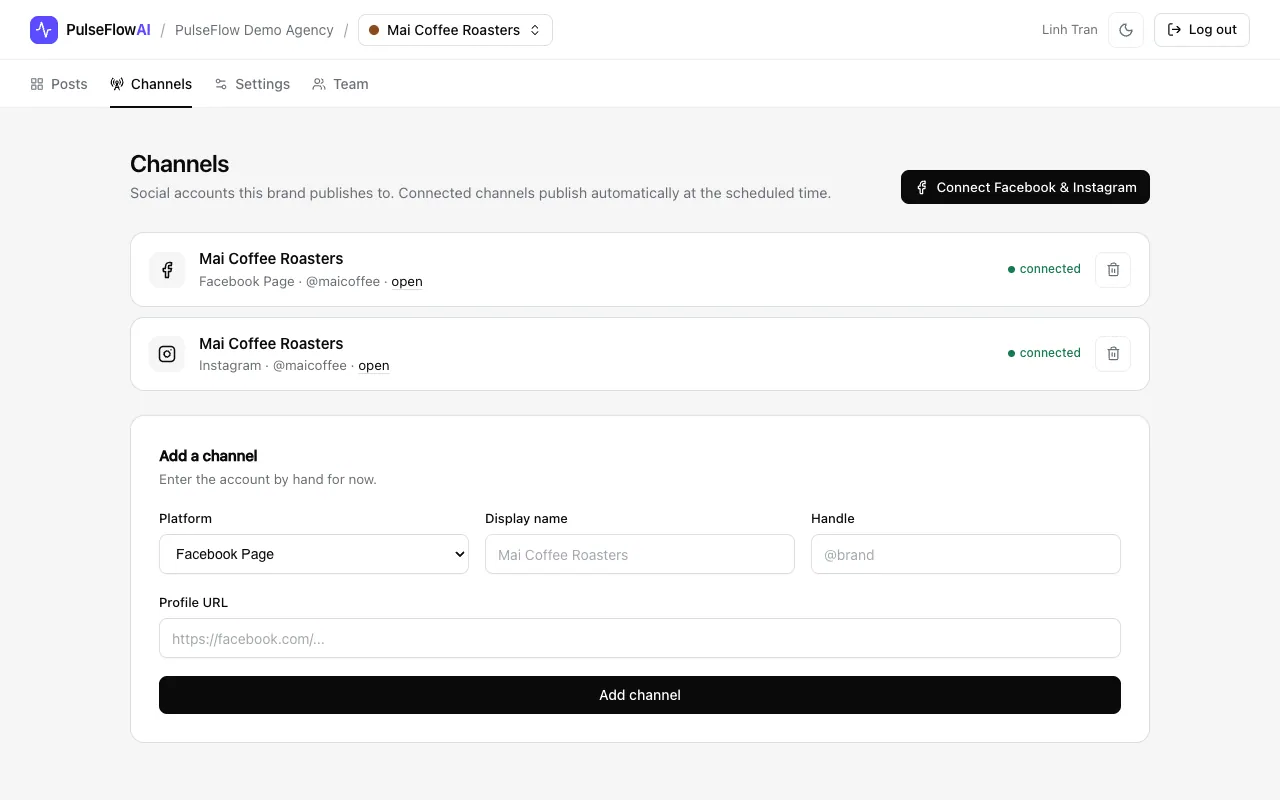
Open the workspace and click the Channels tab. Channels added by hand show as not connected and cannot publish. Click Connect Facebook & Instagram.
-
Step 2: Log in on Meta and keep every Page selected
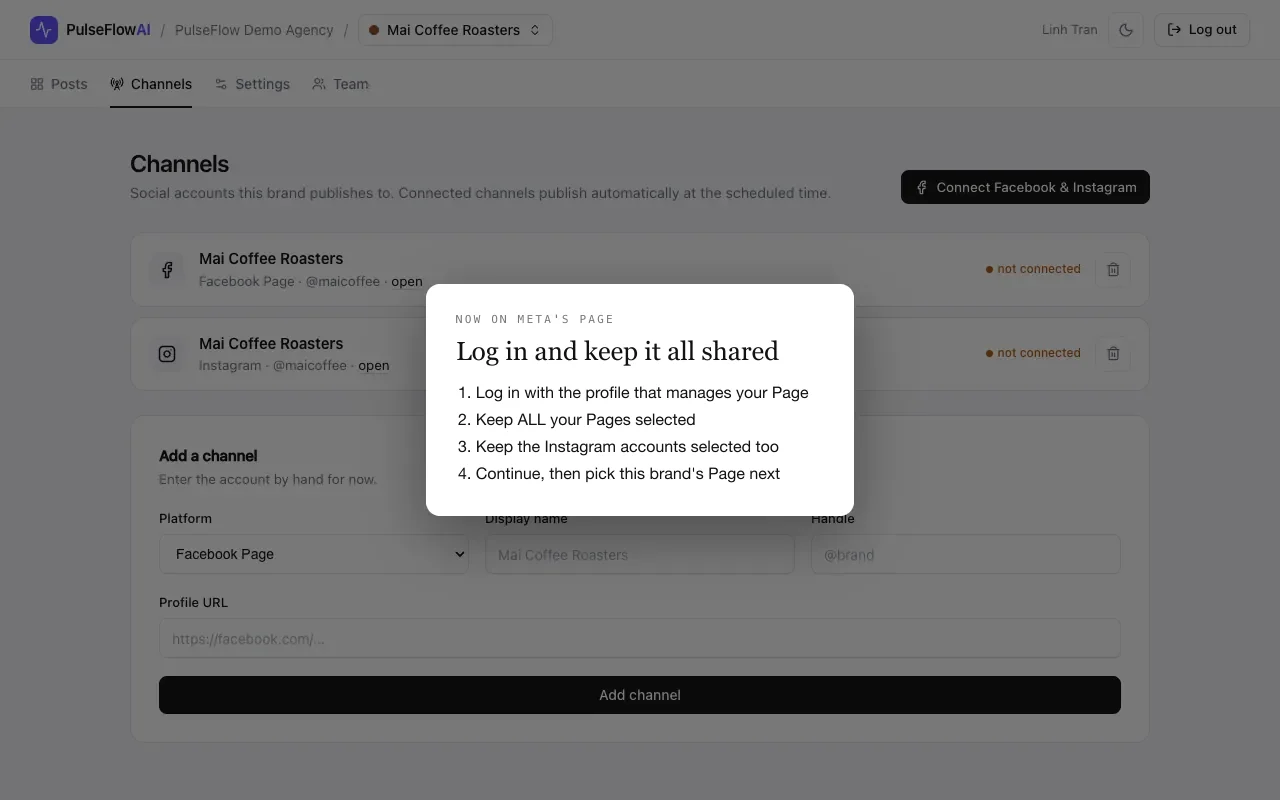
You are sent to Meta in the same tab. Log in with the profile that manages your Page. In Meta's dialog keep ALL your Pages selected, and keep the Instagram accounts selected too, then continue. You pick this brand's Page on the next screen. If you untick Pages here, other brands' channels can stop working. We do not reproduce Meta's screens here because Meta changes them; the card shows the order of the four actions.
-
Step 3: Review what Meta shared
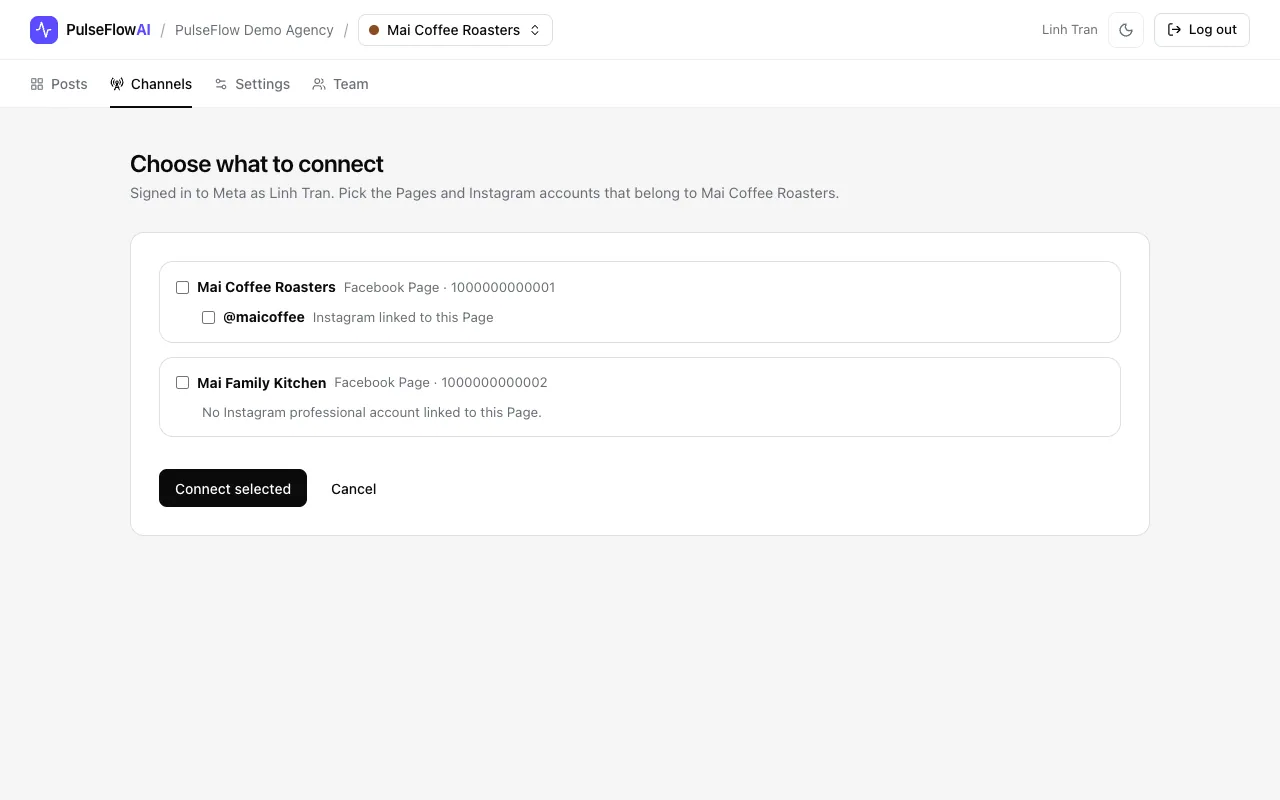
You return to PulseFlowAI at Choose what to connect. It lists the Pages Meta shared, with the Instagram account linked to each. A Page without a linked professional account says so.
-
Step 4: Tick the Page and Instagram account
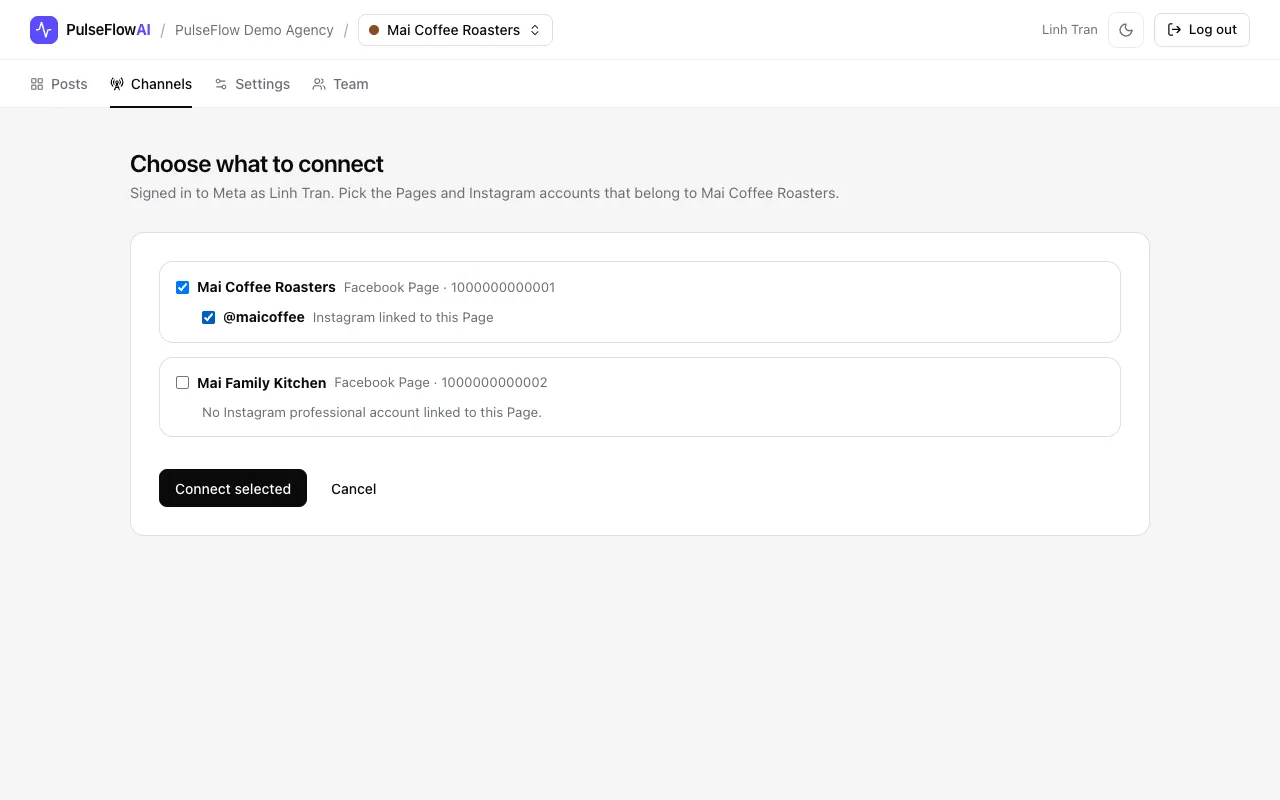
Tick the Page and the Instagram account that belong to this brand. Leave other Pages unticked so they stay out of this workspace.
-
Step 5: Connect and check the status
Click Connect selected. Back on Channels, both channels show connected. Posts that target them publish automatically at their scheduled time.
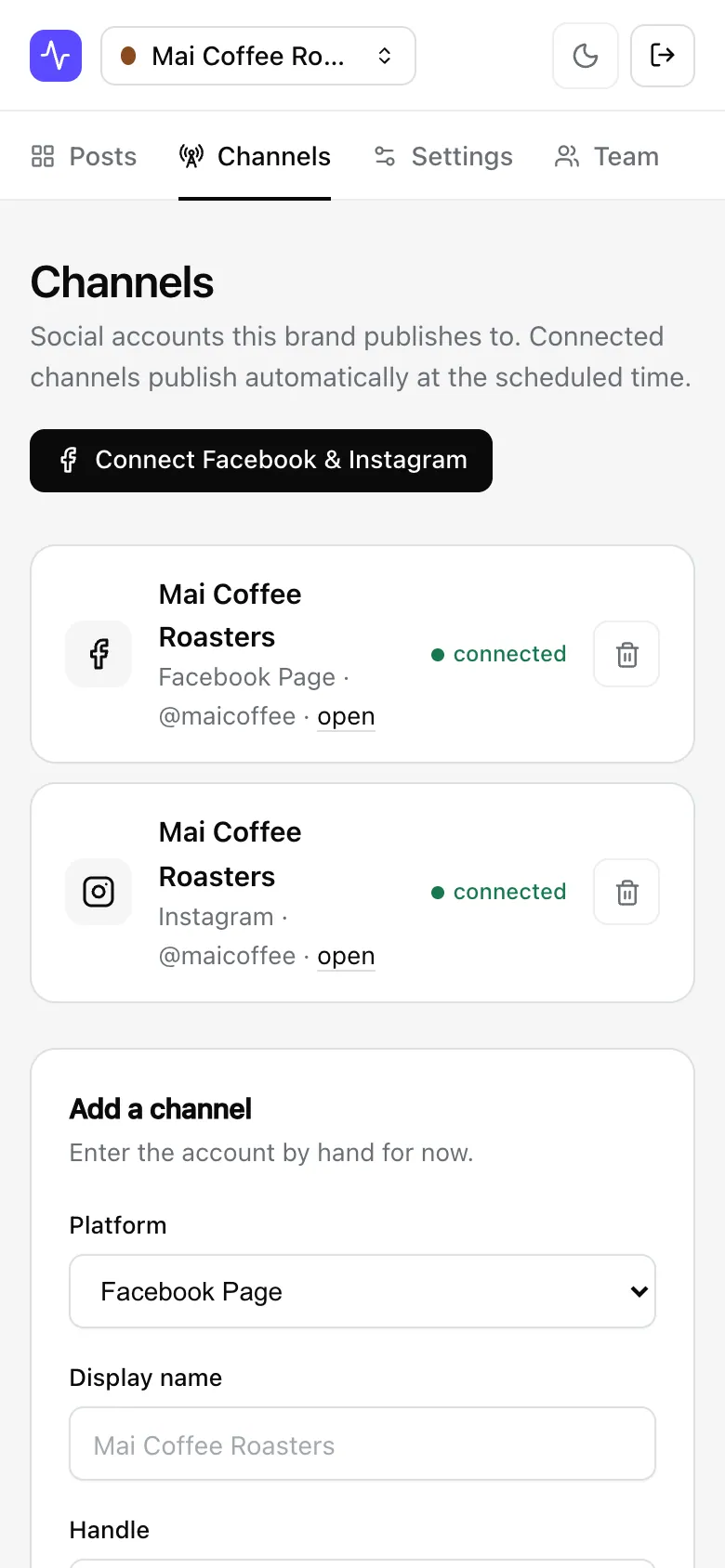
On a phone
The app is responsive, so the same steps work on a small screen.
Tips
- Personal Instagram accounts cannot be connected. Switch the account to Professional in the Instagram app, then link it to the Page.
- You can remove PulseFlowAI from your Facebook or Instagram settings at any time. See the data deletion page for what we delete.
Common questions
The Connect button is not there.
Only managers see it. If you are a manager and it is still missing, email [email protected].
No Facebook Pages came back from Meta.
Run the connection again and make sure your Pages stay selected in the Meta dialog. The Instagram account needs to be linked to that Page.
Can I add a channel without connecting it?
Yes. Use the Add a channel form on the Channels page. It keeps the channel in your plan but cannot publish until it is connected.